Images
Featured image in campaigns
Campaign wizard › Publishing › Featured image offers three choices; they also apply to verbatim import.
Let Yazgan create it (recommended, default for new campaigns)
A cover is found or created for every post in the order set under Image source (see below). Alt text and file name come from the post title, and the image becomes the featured image without waiting for a choice. For stock photos, the photographer and source are written in the caption.
Source image
The image in the feed (RSS enclosure / media:content / media:thumbnail) or, when rewriting, the source page's sharing image (og:image) is used.
- Choosing it asks for the "I have the right to use this source’s images on my site; the responsibility is mine." confirmation, recorded with user name, date and IP.
- The image is downloaded through the safe client: JPEG, PNG, WebP or GIF only; up to 8 MB; very small images are skipped.
- "Image: source name" is shown under the image.
- With verbatim import only the image address in the feed is used; the page is not fetched.
- The If the source has no image or it cannot be downloaded, let Yazgan create one box appears only with this choice (on by default); when it is off, the post stays without an image.
No image
Posts are saved without a featured image; you can add one later with Generate images.
The image cost is shown under the choice: "no extra cost is expected" if the sources in the order are free, otherwise the highest estimated amount per post.
Existing campaigns keep their image setting; you can change it in the wizard.
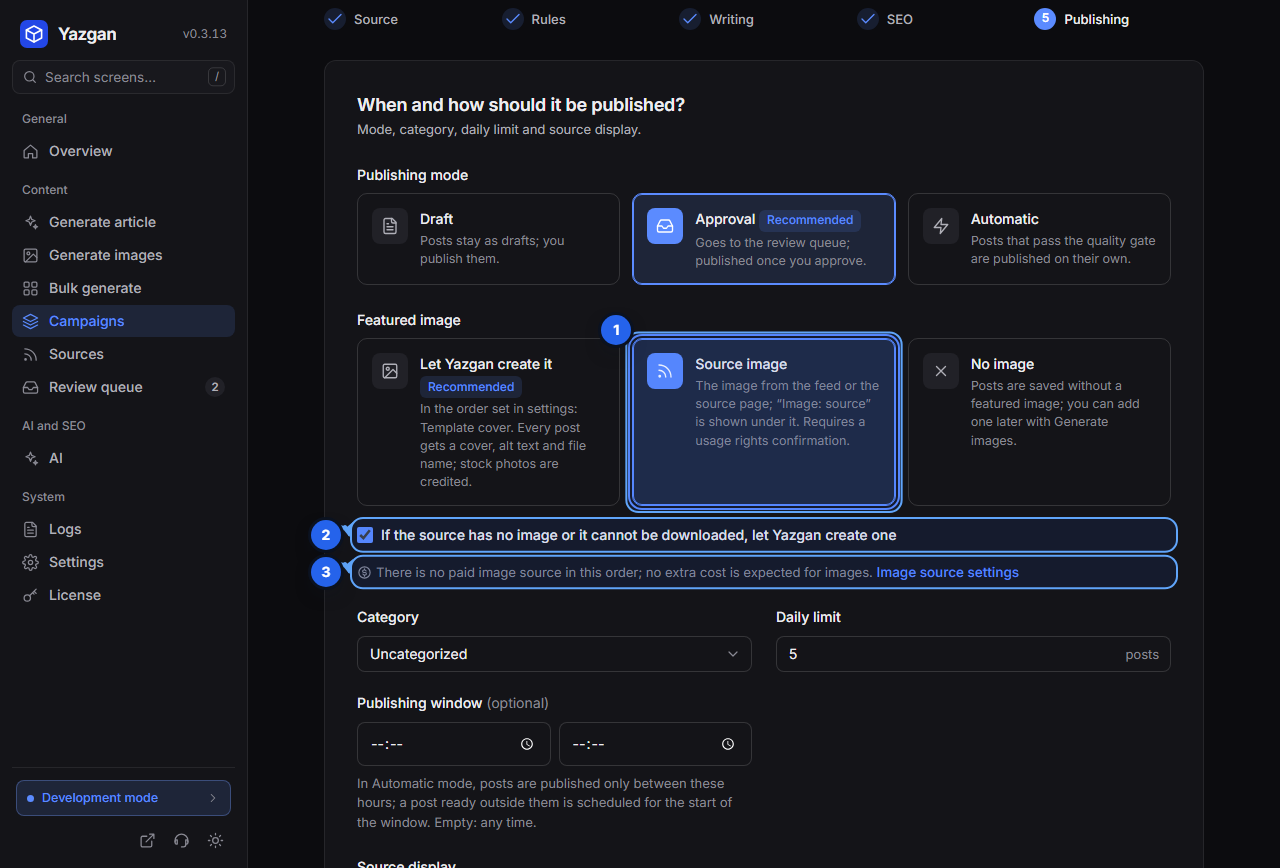
- Source image (selected after the usage rights confirmation).
- If the source has no image or it cannot be downloaded, let Yazgan create one — shown only with this choice.
- Image cost and the Image source settings link.
Image source settings
Under Yazgan › AI › Image source, the cover image is looked for in this order; the first one that returns a result is used:
| Source | Note |
|---|---|
| Pexels | Key from a free account; photographer and source in the caption |
| Pixabay | Same; skipped in the order if the key is empty |
| Cloudflare Workers AI | Account ID + API token; runs on the free daily quota, moves to the next source when the quota is used up |
| Template cover | Key-free last link: drawn with the title, category and site name in your site's accent color; no post is left without a cover (needs GD on the server) |
Change the order by dragging or with the arrow keys. Each source's Test button only searches; it does not download an image. If Caption AI images is on, "Representative image — generated with AI" is shown under AI images.
Generate images screen
Yazgan › Generate images creates cover and in-content images for a post: provider (OpenAI or Google; keys on the AI screen), style, ratio, color tone, text in image, prompt and a "do not include" list. In-content images go after subheadings or every N paragraphs. In the preview you can regenerate each image, change its alt text and file name, and add it to the media library (WebP) and the post with Add selected to post.
After Generate article, Generate image with AI on the Post ready bar creates a cover on the same screen; add it with Set as featured image.
Cover image from the post (on phones too) — 0.3.14
For posts you write outside campaigns, or posts left without a cover, the cover can be generated from three places; all three work on phones:
- Block editor: at the bottom of ⚙ Settings › Post, the Cover image (AI) panel → Generate cover image. A preview appears; adjust the alt text and press Set as featured image. On phones the full Yazgan panel opens from ⋮ (Options) › Yazgan · Generate with AI.
- Classic editor and Mergen Writing Studio: the Generate cover with AI button in the Featured image box.
- All Posts list: the Generate cover link on a row (Refresh cover if it has one) opens Generate images for that post with only the cover selected. For several posts, tick them and choose Bulk actions › Generate covers for posts without one (AI) → Apply. Covers are added in the background within a few minutes (at most 20 posts per run); posts that already have a cover are left untouched.
The cover uses the first connected source in the image source settings; with no keys at all the free template cover is used (needs PHP GD on the server). The image is added to the post only after you confirm (in the bulk action, selecting the posts counts as confirmation).