FAQ and troubleshooting
This page collects the problems our users run into most often, with their solutions. Each topic follows the order symptom › cause › solution. If you can't find what you're looking for, see the support ticket section at the end of the page.
First step: System & help
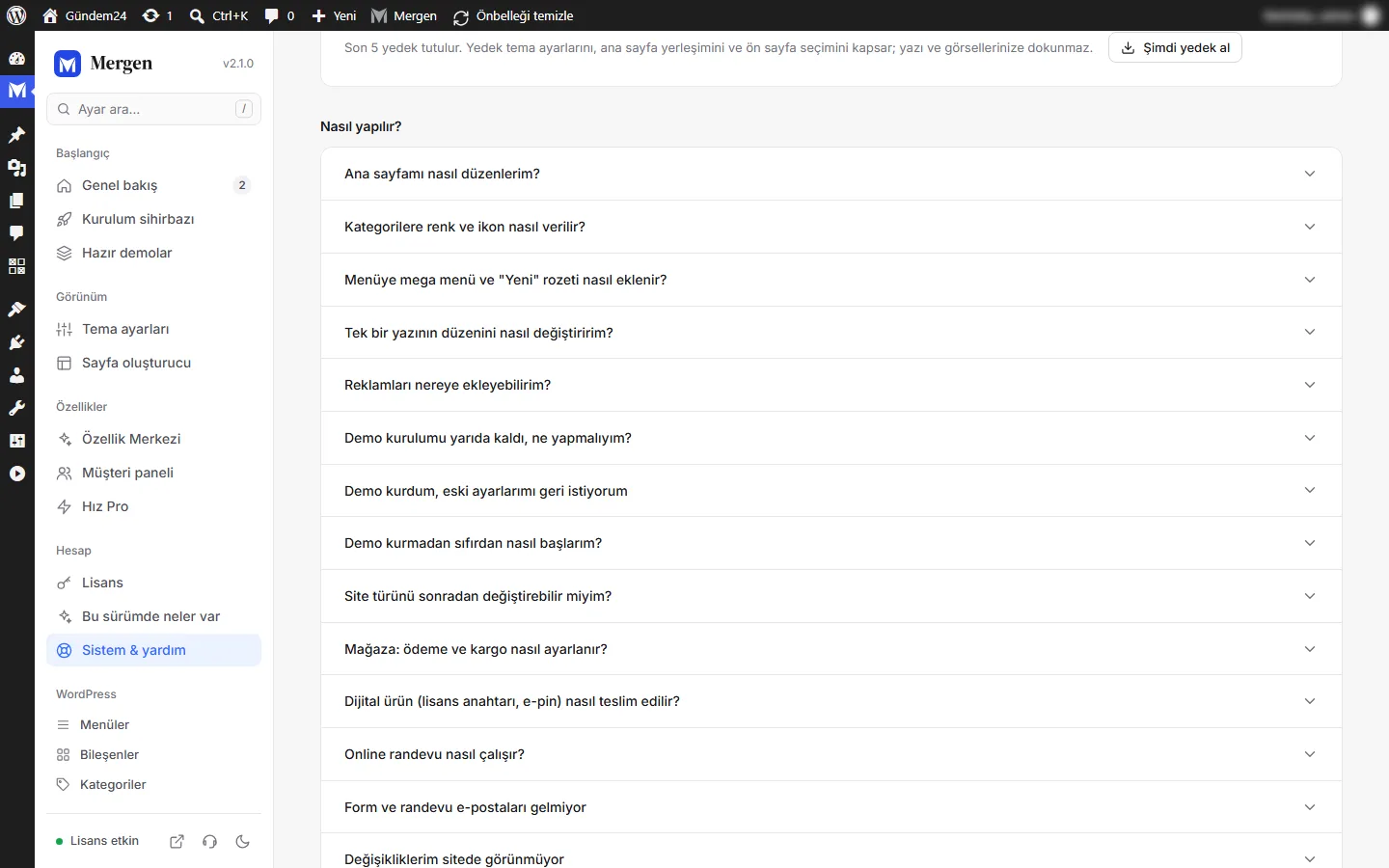
When you run into a problem, open Mergen › System & help first. Red rows in the System status table most likely point to the source of the problem: PHP version, memory limit, execution time, upload size, Sodium, ZipArchive, OpenSSL, GD/Imagick, permalinks and Temorya API access. Send a screenshot of the red row to your hosting provider and ask them to fix it.
The How to section at the bottom of the same screen explains common tasks step by step: editing the homepage, category colors, mega menus, post layout, ad areas, an unfinished demo import, going back to old settings, starting from scratch, payment and shipping, digital product delivery, appointments, email problems and more.
Installation and license
The license says "could not reach the server"
Cause: Your server cannot connect to temorya.com. A firewall, an outbound connection restriction at your hosting provider or a security plugin may be blocking external requests. The Temorya API access row in the System status table is red.
Solution:
- Ask your hosting provider to allow outbound connections to
temorya.comon port 443 (HTTPS). - If you use a security plugin, turn off any "block external HTTP requests" type setting or add
temorya.comto its allow list. - If the
WP_HTTP_BLOCK_EXTERNALconstant in yourwp-config.phpistrue, addtemorya.comto theWP_ACCESSIBLE_HOSTSconstant. - Click Mergen › License › Verify now.
Note: If the license was activated before, the theme keeps working during temporary connection problems; the license is re-verified once a day. If the server can't be reached for a long time, the screen shows "License could not be verified".
"This license is active on another domain"
Cause: A single-site license is used on one live domain, and the key is registered to your old site.
Solution:
- If you can access the old site, go to Mergen › License there and either enter the new address with Move to another domain or click Remove from this site; then enter the key on the new site.
- If you can't access the old site (the site was closed, the server deleted), open a support ticket from your Temorya account and we will reset your domain record.
www.yourdomain.comandyourdomain.comcount as the same.localhost,*.testandstaging.*addresses don't count against the quota, so you can use your test site freely.
Details: Installation › Moving the license.
"License invalid"
The license may have been suspended, expired (for annual licenses) or cancelled because of a refund. Check the license status on the Panel › My products page of your Temorya account; if you don't see a problem, open a support ticket.
"PHP sodium extension missing"
License responses are digitally signed, and the PHP Sodium extension is required to verify the signature. Ask your hosting provider to enable Sodium; it is usually on by default on PHP 7.2 and later.
Memory and time limits
"Allowed memory size exhausted" or a white screen
Symptom: An "Allowed memory size exhausted" error or a blank white page during a demo import, while uploading a large image or while saving in the page builder.
Cause: The PHP memory limit (memory_limit) is low. Mergen recommends at least 128 MB, and 256 MB for demo imports and shop sites.
Solution:
- Check the Memory limit row in System status.
- Set
memory_limitto 256M in the PHP settings section of your hosting control panel ("Select PHP Version › Options" or "MultiPHP INI Editor" in cPanel). - If you can't change it from the panel, add the following above the
/* That's all, stop editing! */line inwp-config.php:
define( 'WP_MEMORY_LIMIT', '256M' );
define( 'WP_MAX_MEMORY_LIMIT', '512M' );
- If it still shows a low value, the server limit is lower; ask your hosting provider to raise it.
Timeout during a demo import
Symptom: The demo import stops at the same step (usually Uploading images), and an "Import paused" or "504 Gateway Timeout" error appears.
Cause: The server's maximum execution time (max_execution_time) is short, or image downloads are slow. Mergen splits the import into small steps, but on very restricted servers even a single step can exceed the limit.
Solution:
- Open Mergen › Demos and click Resume where it left off. Completed steps are not repeated; most of the time this is enough. See Demo import › Stopped halfway.
- If the problem keeps happening, ask your hosting provider to set
max_execution_timeto 120 seconds or more. - To add images later, you can turn off the Images (recommended) option in the import window and complete the import, then Reimport the demo with images afterwards.
- Check the memory limit too (above).
"The uploaded file exceeds the maximum upload size"
Have upload_max_filesize and post_max_size raised to at least 32 MB, or upload the theme via FTP. See Installation › Upload size.
Addresses and pages
My account, appointment or careers page returns a 404
Symptom: Addresses such as /hesabim/, /hesabim/siparisler/, /hizmetler/, /kariyer/ or /yardim/ show "Page not found".
Cause: WordPress's address rules were not refreshed after a new feature was turned on or the site was moved, or permalinks are set to "Plain".
Solution:
- Open Settings › Permalinks.
- Select the Post name option (1) (if it is already selected, don't change anything).
- Click Save Changes. This refreshes the address rules.
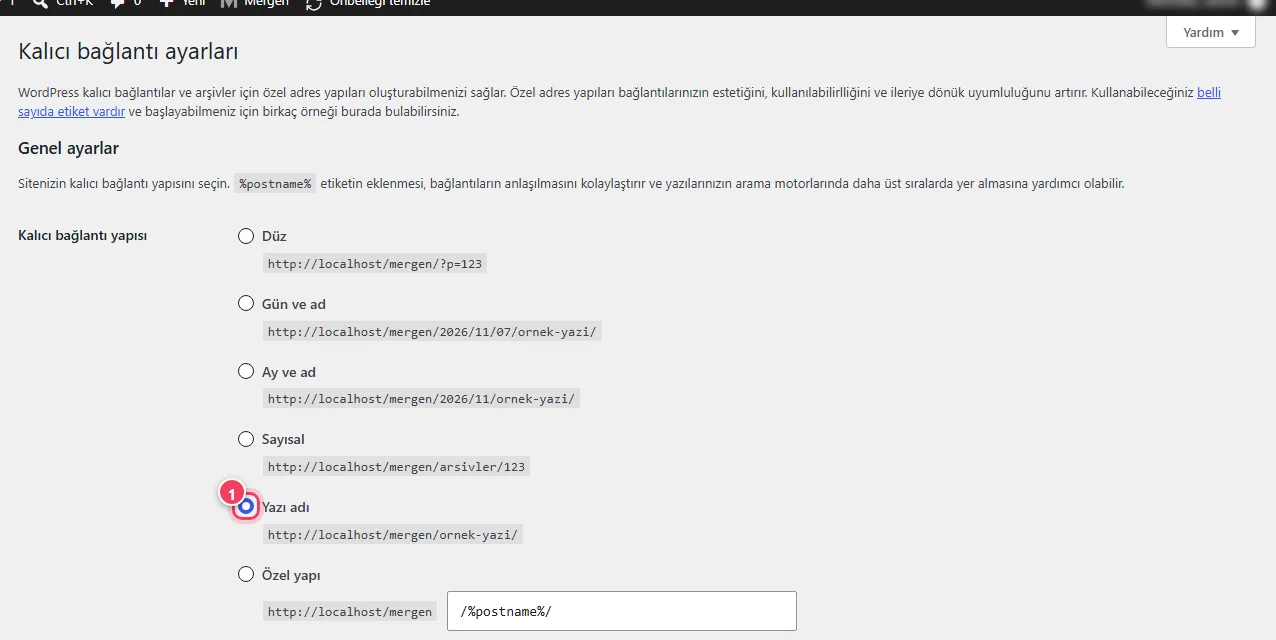
Settings › Permalinks: (1) Post name. Turkish interface shown. - If the problem persists, ask your hosting provider whether the
.htaccessfile on your server is writable (Apache/LiteSpeed) or whether the Nginx rules are set up for WordPress.
The homepage looks empty
Under Settings › Reading, A static page must be selected as Your homepage displays, and that page must have been edited with the page builder. If you imported a demo, the wizard does this itself. In the page builder, check which page the Editing › ★ Homepage row points to.
The menu doesn't appear
Under Appearance › Menus, assign your menu to the Main menu location and click Save Menu. On phones, the menu is behind the three-line icon at the top right.
Logo or menu disappeared after switching to the child theme
Mergen Child copies the parent theme's settings when it is first activated. If you activated the child theme earlier with other settings, reselect the logo under Theme settings › General and the menu location under Appearance › Menus.
Cache and changes
My changes don't show on the site
Cause: The page cache, CDN cache or browser cache is showing the old version.
Solution (in order):
- Make sure you actually saved the setting (Save in the bottom bar; Save in the page builder).
- Click Clear cache in the admin bar.
- If you have a separate caching plugin or your hosting provider's cache (LiteSpeed, Nginx, Varnish), clear that cache too.
- If you use a CDN such as Cloudflare, run Purge Cache.
- Reload the page in your browser with Ctrl+F5 (Cmd+Shift+R on Mac) or open it in a private window.
Tip: The page cache is not applied to logged-in administrators; when you can see a change but visitors can't, it is almost always the cache.
Two caching plugins
Don't run Speed Pro's Page cache module together with another page caching plugin; pages may get mixed up. Turn one of them off. See Speed Pro.
Password reset, order or appointment emails don't arrive
- Set up SMTP under Theme settings › Email and try it with Send test email.
- Look at the row for that email in the Email log: if it says "Sent", check the spam folder; if it says "Failed", check the error message.
- Add SPF, DKIM and DMARC records to your domain.
Details: Email and SMTP.
Appointment reminders are late
Reminders are sent with WP-Cron, and WP-Cron only runs when the site gets a visit. Add a real cron job that runs every 5 minutes from your hosting control panel. See Corporate › Confirmations and notifications.
Performance
The site is slow
- Turn off the features you don't use in the Feature Center; the code of disabled features doesn't run at all.
- Resize images before uploading them (a width of 1600 pixels is enough), or turn on Speed Pro's image modules.
- Use a page cache (Speed Pro or another caching plugin; not both together).
- Use PHP 8.2 or later; you can see the PHP version in System status.
- Avoid using many live data blocks (exchange rates, weather, earthquakes, football) and Infinite scroll on the homepage at the same time.
- Compare before and after with the PageSpeed test. See Speed Pro.
The weather shows the wrong city
The city is determined from the visitor's connection IP address. A VPN or some mobile carriers (those that route traffic through Istanbul/Ankara) may show a different province. Visitors can change the city with the selector on the block; the choice is remembered. If your site is behind Cloudflare, turning on the "Add visitor location headers" option improves accuracy. Details: Privacy and cookies.
Store
The customer paid but the license key wasn't sent
Bank transfer orders arrive as On hold; confirm the payment and set the order to Processing. If there are no keys left in the pool, the order has a "key missing" note; the key is delivered automatically when you add one. See Store › Delivery.
The cart icon also shows on my news site
The cart and wishlist icons appear only on sites with published products. If you installed WooCommerce for another purpose and have no products, the icon hides itself; if you do have products, you can turn off Theme settings › Store › Cart icon in header.
General questions
On how many sites can I use Mergen?
A single-site license is used on one live domain. Local development (localhost, .test) and test (staging.*) addresses don't count against your license quota. For multiple live sites, each site needs its own license.
Can I use the demo images on my site?
The images in the demo content are for sample purposes. We recommend replacing them with your own images before going live; use your own files especially for images that represent your brand, such as the logo, photos of people and product images.
Can I use the WordPress block editor instead of the Mergen page builder?
Yes. Posts and pages are written with WordPress's own block editor; Mergen's page builder is for the homepage, the post page template and pages that need a custom design. If you don't edit a page with the page builder, the content from the WordPress editor is shown.
Does it work with another page builder plugin?
Mergen comes with its own page builder and doesn't need an additional one. Pages edited with another page builder plugin usually display, but we recommend managing the homepage and post template with Mergen's builder; running two builders together slows your site down.
Can I use it in a language other than Turkish?
Yes. Mergen is translation-ready; if the site language is not Turkish, Turkey-specific features (prayer times, the "Today" strip, recent earthquakes) start turned off. For translation, see Updates and child theme › Translation.
Appearance and content
How do I change the layout of a single post?
While editing the post, choose the Post layout in the Mergen — post options box on the right. In the same box you enter the URLs and images for video, audio and gallery posts, and put the post in the headline with Feature (headline/slider source). For the layout of all posts, see Theme settings › Post page.
How do I give a category a color and an icon?
Edit the category under Posts › Categories and fill in the Category color, Category icon and Cover image fields. The color is used in badges, category boxes and the category page header. See Theme settings › Category colors.
How do I add a mega menu and a "New" badge to the menu?
Under Appearance › Menus, turn on CSS Classes from Screen Options at the top right. Type m-mega in a category item's CSS class; its latest 4 posts open on hover. The m-badge-new, m-badge-hot and m-badge-live classes add a "New", "Popular" or "Live" badge to the item. See Theme settings › Menus.
Where can I add ads?
The Theme settings › Ads tab has before post, in post (after the paragraph you choose), after post and sidebar areas. For a header ad, choose the two-row layout under Header & menu; add the Ad area block from the page builder anywhere on the homepage. When cookie consent is on, ads are shown only to visitors who grant "Marketing" consent.
The dark mode button doesn't appear
Check that Theme settings › General › Dark mode is set to Visitor chooses (button) and that the Dark / Light Mode Toggle feature is on in the Feature Center. If Always dark or Off is selected, the button is not shown.
How do I add a phone number or a "Book appointment" button to the header?
Fill in the Button text and Button link fields on the Theme settings › Header & menu tab; for a phone number, turn on the Phone number option. On corporate sites, you can set the right side of the top bar to Corporate: Book Appointment / Get a Quote buttons. See Theme settings › Top bar.
Can I undo a change I made in the builder?
Before saving, Ctrl+Z undoes and Ctrl+Shift+Z or Ctrl+Y redoes. After saving, the clock icon in the toolbar (Revision history) lists the last 10 saves; load one and click Save. See Page builder › Revision history.
I imported a demo and want my old settings back
Your settings are backed up automatically before every demo import and every "Apply design only". Pick the date from the list under Demos › Settings backups or System & help › Restore previous settings and click Restore. See Demo import › Settings backups.
How do I start from scratch without a demo?
Choose your site type in Mergen › Setup wizard and, on the demo step, click Continue with a blank starter page without a demo. A simple homepage suited to your type is created; you can build on it as you like in the page builder.
Still not solved?
Open a ticket from your Temorya account under Panel › Support: https://temorya.com/panel/destek
Include the following in your ticket; it speeds up the solution a lot:
- Your site's address and the page where the problem appears.
- A screenshot of the Mergen › System & help screen (the System status table and version information).
- Steps to reproduce the problem and the full text of the error message you see.
- The last change you made (an update, a new plugin, a setting).
Caution: Don't share your WordPress administrator password in plain text in a support ticket. If access is needed, our support team will suggest a secure method.