Mergen Core and your data
Mergen Core is the companion plugin of the Mergen theme. The look (templates, colors, blocks, page builder) lives in the theme; everything that creates and stores data lives in the plugin. Thanks to this split, your appointments, support tickets, license key stock and business content are not lost even if you change themes one day.
Goal
- Know what Mergen Core stores.
- Install the plugin, keep it active and update it.
- Understand what happens to your data when you change themes, deactivate the plugin or delete it.
What's in Mergen Core?
| Area | Data stored | Admin screen |
|---|---|---|
| Business content types | Services, team/specialists, projects/cases, branches, job listings, help articles | Corporate menu |
| Appointments | Appointment records, business hours, rules | Appointments menu |
| Quote requests and job applications | Requests, estimated amounts, CV files (in a protected folder) | Corporate › Quote requests, Job applications |
| Support | Tickets, messages, attachments, canned replies, email templates | Support menu |
| SMTP sending, email log, branded template | Theme settings › Email | |
| License keys | WooCommerce key pool (encrypted), delivery records | WooCommerce › License keys |
| Other | Form submissions, 404 monitoring and redirects, shortcodes, Speed Pro server cache | Related screens |
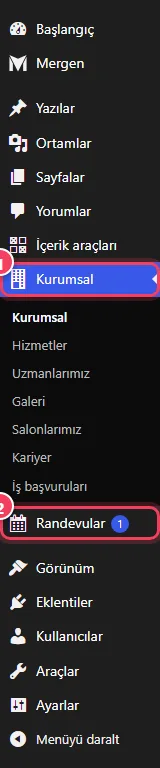
On a site with Mergen Core active, the Corporate, Appointments and (if enabled) Support menus (1, 2) appear in the WordPress menu:
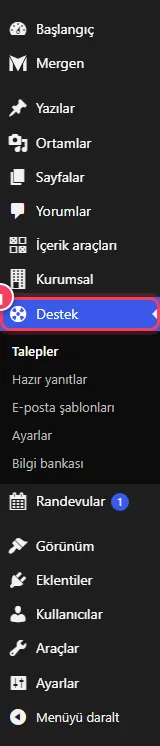
When the support system is on, the Support menu is added too (1):
In a store, license key management is under the WooCommerce menu (1):

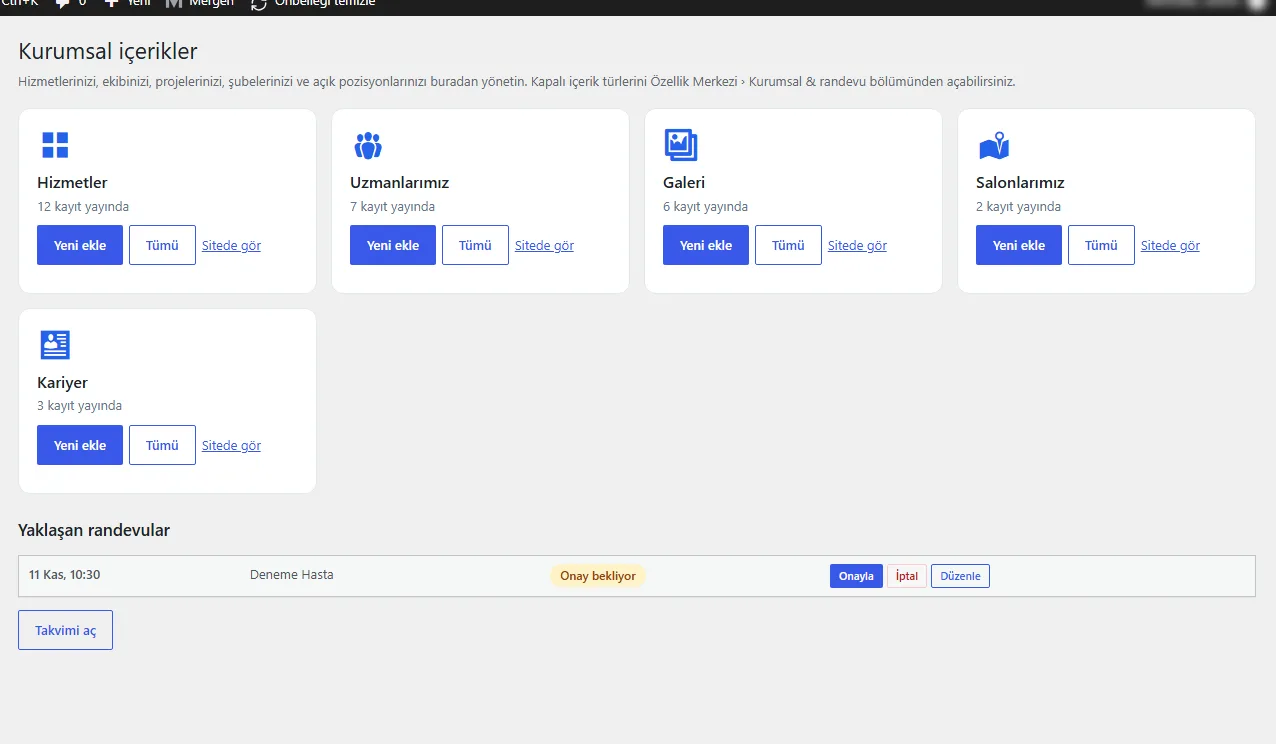
The Business content screen is a summary of the business data the plugin stores:
Installation
Mergen Core comes inside the theme package; you don't need to download it separately.
- The Setup wizard and demo import install and activate the plugin automatically.
- If the plugin is not active, a "Mergen Core is not active" notice appears at the top of the admin panel; install it in one click with the button in the notice.
- To install it manually, download the
mergen-core.zipfile from your Temorya account, upload it with Plugins › Add New Plugin › Upload Plugin and activate it.
After installation, you will see the "Mergen Core" row on the Plugins screen:

The links under the row (1) deactivate the plugin or show its details; the description line (2) shows the version and author.

Note: The theme keeps working while Mergen Core is inactive; only blocks that need data, such as appointments, support, business content and store keys, are hidden in the page builder, and administrators see an "Activate Mergen Core" notice. No fatal error occurs.
What happens if the theme changes?
| Situation | Result |
|---|---|
| You switched from Mergen to another theme, Mergen Core is active | Your appointment, quote, support, license key and business content records and admin screens are kept. Shortcodes keep working; the look adapts to the new theme's style. Email settings move to the Settings › Email (Mergen) screen. |
| You deactivated Mergen Core | The data stays in the database without being deleted; it comes back exactly as it was when you reactivate the plugin. |
| You deleted Mergen Core | The plugin files are deleted; tables and records still stay in the database. They come back when you reinstall the plugin. |
| You switched back to Mergen | Everything continues where it left off. |
Note: Mergen-specific design elements (page builder layouts, headlines, theme settings) belong to the theme; they don't appear in another theme but are not deleted. They are in place when you return to Mergen.
Danger: Data is only truly deleted with the related feature's Full cleanup button (e.g. Support System › Delete support data). This cannot be undone; take a backup before using it.
Back up your data
Mergen Core data is stored in the WordPress database. Your hosting control panel's backup tool or a backup plugin covers this data too. In addition, you can also export:
- appointments with Appointments › All appointments › Download CSV,
- license keys with WooCommerce › License keys › Export as CSV,
- newsletter subscribers with Overview › Site summary › Download CSV
as separate files.
Updates
Mergen Core is updated with your theme license. New versions appear on the Plugins and Dashboard › Updates screens. Keep the theme and the plugin up to date together; new theme versions may expect the latest version of the plugin. See Updates and child theme.
Frequently asked questions
Do I need to buy Mergen Core separately?
No. Mergen Core is included in the Mergen theme license and comes with the theme package. The only add-on that requires a separate license is Speed Pro.
Can I use Mergen Core with another theme?
Yes. That is exactly the purpose of Mergen Core: when you switch from Mergen to another theme, the appointment, support, quote, application and license key screens keep working, and shortcodes keep showing forms on your pages. The look adapts to the new theme's style; Mergen-specific design blocks (headlines, page builder layouts) don't appear in the new theme.
Does Mergen Core slow down my site?
No. The plugin only loads the code of the features that are on: if the Support System is off, the support code doesn't run at all. The database tables of disabled features aren't queried either.
If I delete Mergen Core, is my data gone?
No. Deleting the plugin only removes the plugin files; tables and records stay in the database. To delete the data permanently, you need to use the related feature's Full cleanup button.
What are shortcodes?
Mergen Core offers shortcodes to show forms and lists in any theme or page editor. Each feature's card in the Feature Center has a Where is it used? section with the shortcode and a Copy button; just copy it and paste it into a page or widget. While Mergen is active, you do the same with blocks in the page builder.
Common mistakes
| Symptom | Cause | Solution |
|---|---|---|
| "Mergen Core is not active" notice | The plugin is off or not installed | Install and activate it with the button in the notice. |
| Appointment/support blocks are missing in the page builder | Mergen Core is off | Activate the plugin. |
| The plugin appears to be installed twice | Two copies with different folder names | Only one runs; deactivate and delete the old one (data is not deleted). |
| I changed the theme and the Corporate menu disappeared | Mergen Core was deactivated too | Activate Mergen Core under Plugins. |