Demo import
- 1 Browse the demos
- 2 Live preview
- 3 Import the demo
- 4 Applying the design only
- 5 Restoring a settings backup
- 6 Removing demo content
- 7 Switching to another demo
- 8 If the import stops halfway
Your progress is kept in this browser
Mergen comes with 61 ready-made demos, each with 3 homepage designs. When you import a demo, the colors, fonts, header and footer layout, homepage, menus, sample posts, pages and images arrive in one click. You then replace the sample content with your own. This section explains how to choose, import, change and remove demos.
Goal
To get a professionally prepared starting point instead of designing your site from scratch. Demo import:
- Does not delete your own posts.
- Automatically backs up your current theme settings just before the import; if you don't like the result, you can go back in one click.
- Runs in steps; if the connection drops, it resumes where it left off.
- Later, Remove demo content deletes only the items the demo added.
Prerequisites
- Mergen must be active and your license must be active. Without a license you can preview demos and apply the design only; sample content packages are downloaded with a license. See Installation and license.
- Mergen Core must be active (services, team, appointments and quotes in the corporate demos are stored in this plugin). If the plugin is not active, the import installs it itself.
- Shop demos require WooCommerce; the import installs and activates it for you as well.
- Your server's memory limit should be at least 128 MB (256 MB recommended). The Server pre-check row in the import window checks this.
Tip: You get the cleanest result on an empty (freshly installed) site. If you are trying it on a site that already has content, try the look first with Apply design only.
Demo types
| Tab | Number of demos | Who is it for? |
|---|---|---|
| News & magazine | 31 | Newspapers, news portals, local news, business, sports, technology, automotive, entertainment, crypto and similar publications |
| Blog & lifestyle | 13 | Content sites and personal blogs on food, travel, science, education, agriculture, parenting, film, music, esports and more |
| Shop | 6 | License market, e-pin, game store, electronics, boutique and bookstore |
| Corporate | 8 | Lawyer, plumbing, logistics, private clinic, dental clinic, accountant, construction and beauty center |
Every demo has its own logo, color palette, content and photos; the customer panel also comes preconfigured for the demo's type (e.g. the game store has no "My appointments", the clinic has no "My licenses").
1. Browse the demos
- Open Mergen › Demos from the left menu.
- Choose a type with the tabs at the top (1): All, News & magazine, Blog & lifestyle, Shop, Corporate. The number next to each tab is the number of demos of that type.
- Or type in the search box on the right (2): "hairdresser", "game", "sports", "book" and so on. You can also jump to the box with the / key.
- Look through the cards (3). The Settings backups (4) and Remove demo content (5) buttons at the top right are the other tools on this screen.
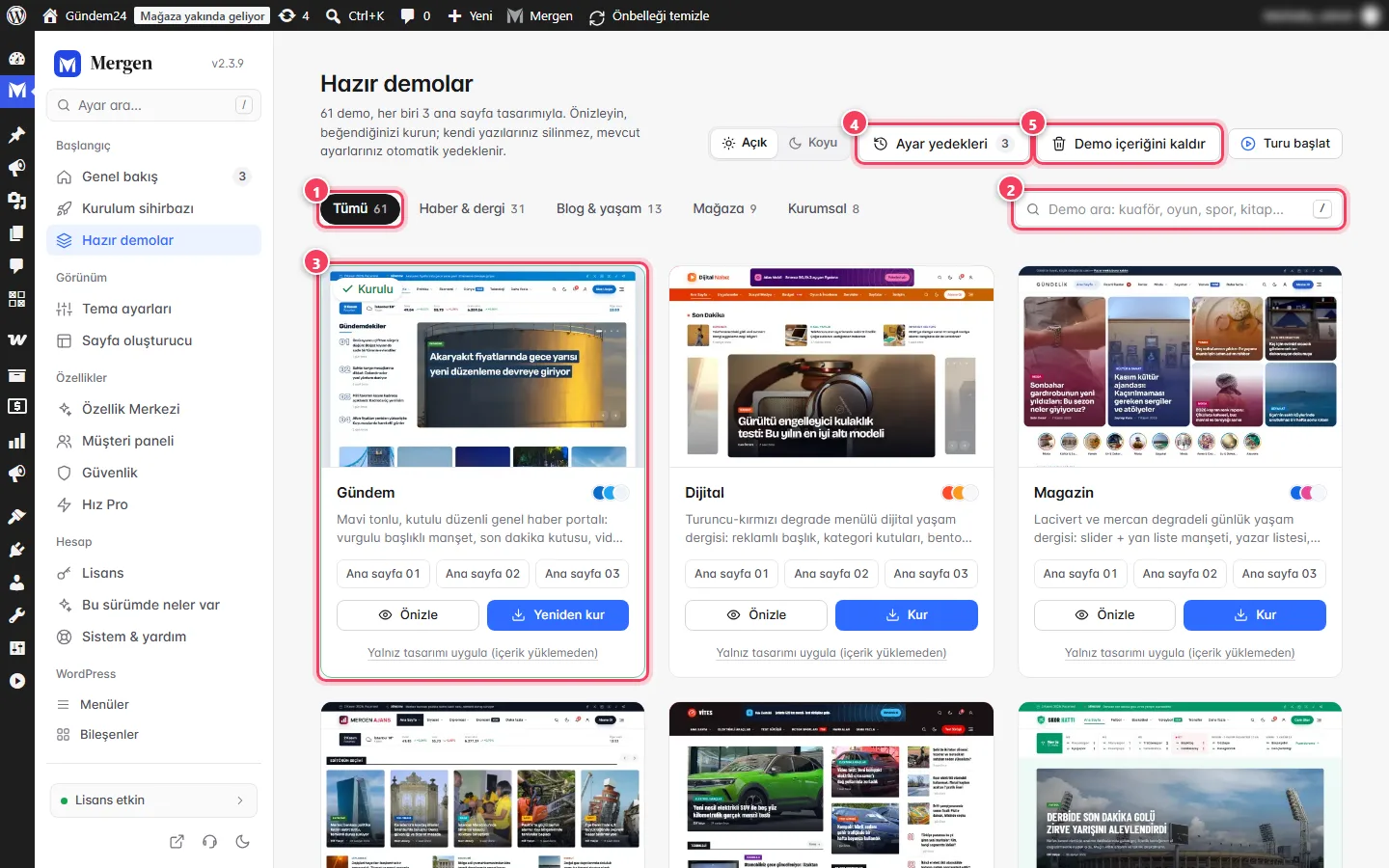
Mergen › Demos: (1) type tabs, (2) search, (3) demo card, (4) Settings backups, (5) Remove demo content. Turkish interface shown.
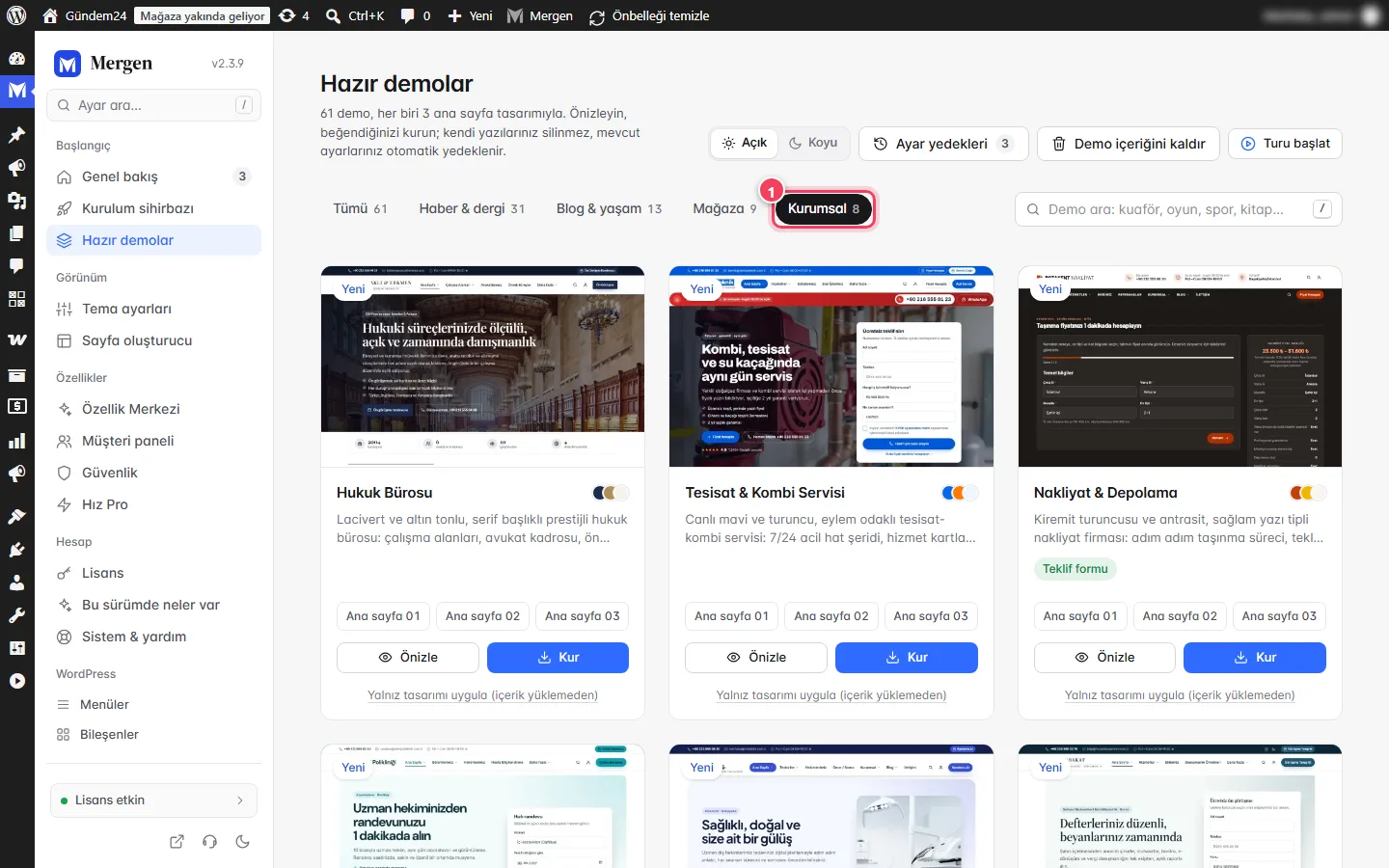
When you switch to the Corporate tab, only corporate demos are listed:
Search finds words in the demo's name, description and topic:
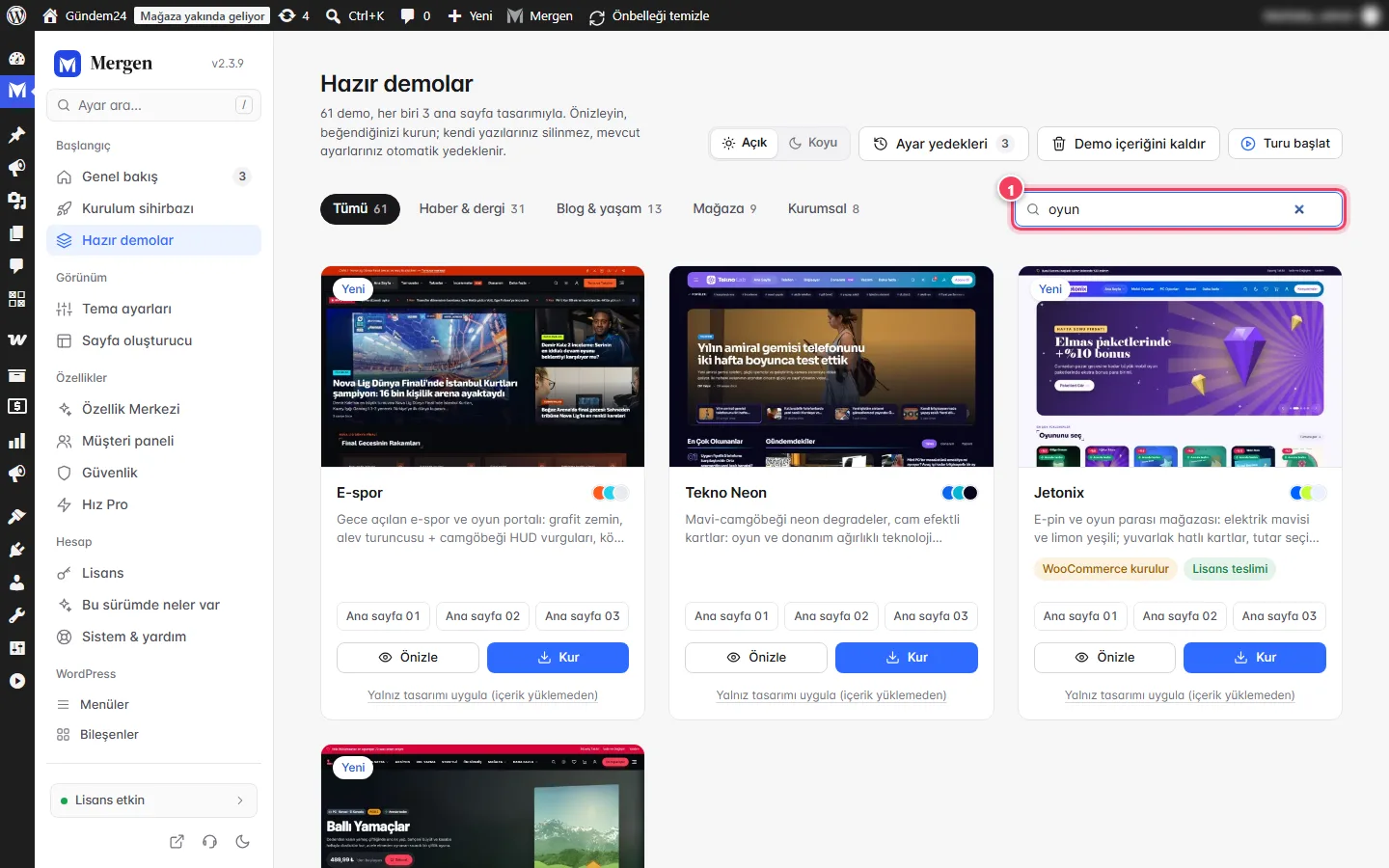
Note: If no demo matches your search, a "No demos match your search" message appears. Try another word or go back to the All tab.
Reading a demo card
Each card shows:
- The demo's screenshot and name, with small circles showing the demo's color palette.
- A short description: color, font and layout features.
- Badges: Imported (the demo installed on this site), New (added in the latest version), Installs WooCommerce (shop demos).
- Homepage 01 / 02 / 03 buttons: preview that homepage design (3).
- Preview (1) and Import (2) buttons. On the imported demo, Import reads Reimport.
- The Apply design only (without content) link (4).
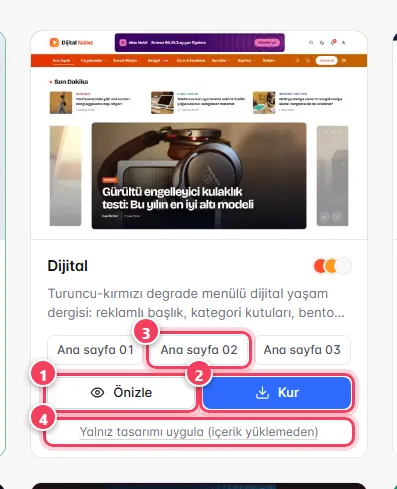
2. Live preview
You can see a demo with its real content before importing it.
- On the card, click Preview or one of the Homepage 01/02/03 buttons. A full-screen preview window opens.
- Switch between Desktop, Tablet and Phone views with the Device buttons at the top (1).
- Compare the three homepage designs with 01, 02, 03 (2).
- You can click the menus in the preview and browse inner pages too.
- If you like it, click Import this demo (3); the import window opens. In new tab opens the preview in a separate tab, and × closes the window.
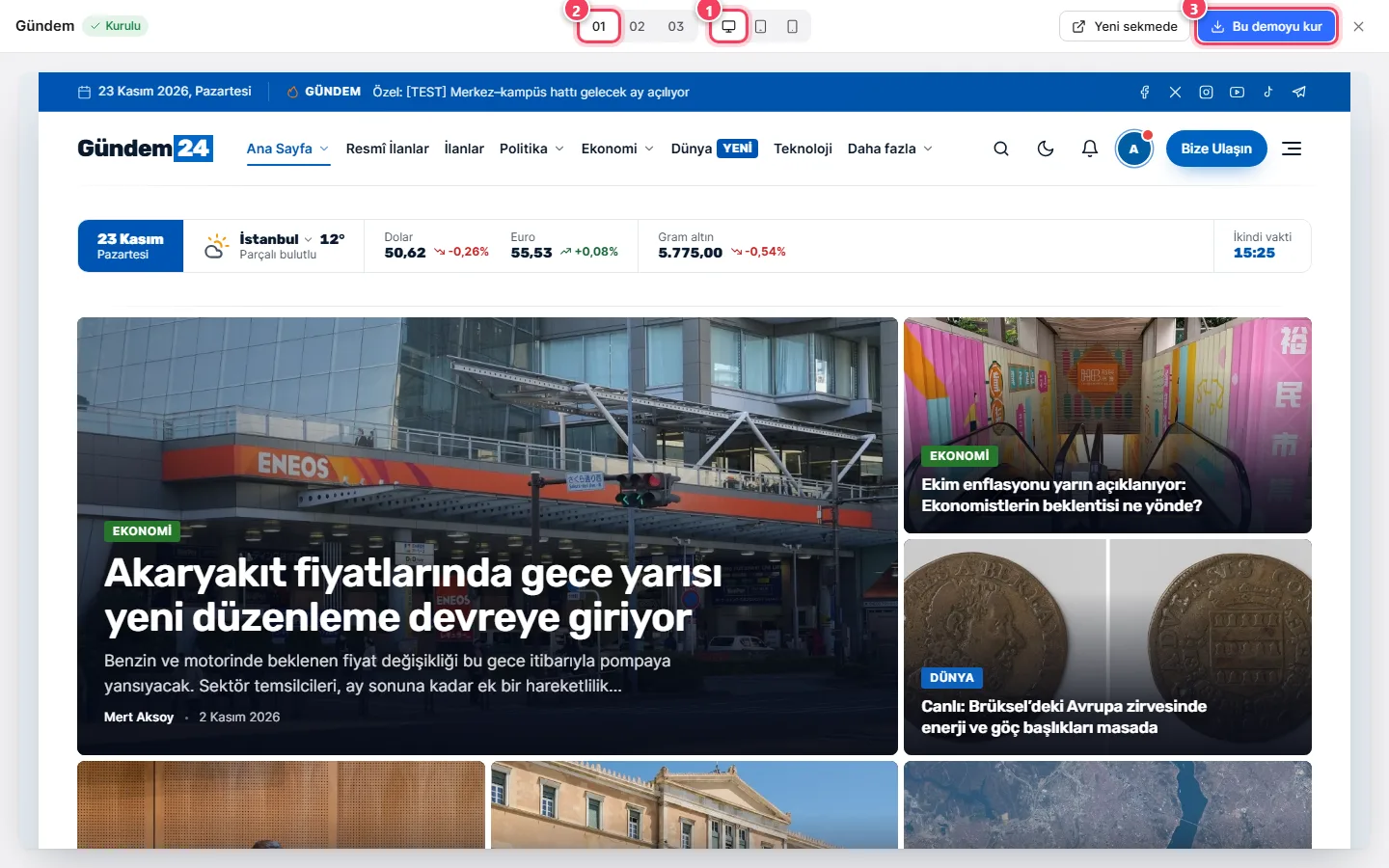
Preview: (1) device view, (2) homepage design, (3) Import this demo. Turkish interface shown.
Note: The preview shows the live site on Temorya's demo showcase; nothing is written to your site. If the preview doesn't open, check your server's or browser's external content blocker.
3. Import the demo
- Click Import on the card (or Import this demo in the preview). The "Demo name — import demo" window opens.
- Choose which homepage design you want to start with (1). The other two are imported as pages too; you can switch at any time.
- Set the import options (2–4); what each one does is in the table below.
- Read the Server pre-check row (5). A green check mark means "memory, time, disk space, ZipArchive and the uploads folder are fine". If you see a warning, the import may be slow or stop halfway; you can still try.
- Click Start import (6).
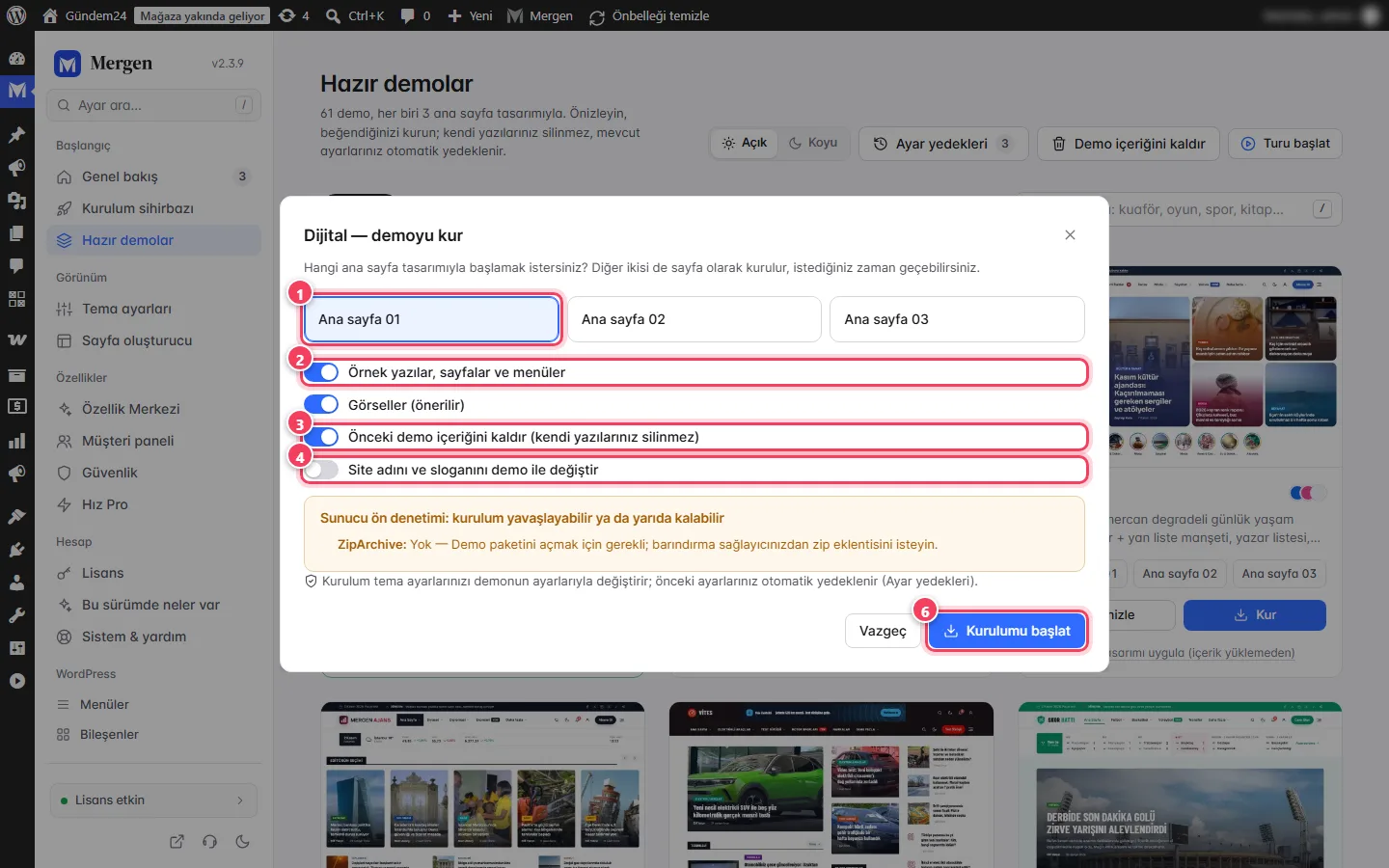
Import window: (1) homepage, (2) sample content, (3) remove previous demo, (4) site name, (5) server pre-check, (6) Start import. Turkish interface shown.
Import options
| Option | Default | What it does |
|---|---|---|
| Sample posts, pages and menus | On | Adds the demo's posts, pages, categories and menus. When off, only the design and homepage layout are applied. |
| Images (recommended) | On | Downloads the sample post and page images. Turning it off speeds up the import; posts arrive without images. |
| Remove previous demo content (your own posts are not deleted) | On (if a demo was imported before) | Deletes the content of the previously imported demo; only items added by a demo import are removed. |
| Replace site name and tagline with the demo's | Off | Replaces your site name and tagline with the demo's. Leave it off if you have already entered your own name. |
For shop demos, the window also shows a "Shop demo: WooCommerce is installed from wordpress.org" notice.
Caution: The import replaces your theme settings with the demo's settings. Your previous settings are backed up automatically before the import, and you can go back from Settings backups. It does not back up content (posts, pages), however; on a live site with content, take a full backup from your hosting control panel first.
Import progress
When the import starts, the window switches to the progress view:
- At the top, the thumbnail and name of the demo being imported, with a progress bar below.
- The large ring (1) shows the percentage; the line next to it shows the current task (e.g. "Uploading images: 18 / 40"), the elapsed time and the approximate time remaining.
- The step list (2): Downloading and verifying package, Mergen Core plugin, Required plugin (WooCommerce) (shop only), Removing previous demo content, Creating authors, Categories and tags, Uploading images, Adding posts, Products, variations and license keys (shop), Business content (corporate demos), Pages and homepage designs, Menus, Widgets, Theme settings and design, Final touches. Completed steps get a green check mark.
- The rotating Tip box at the bottom (3) introduces Mergen's features.
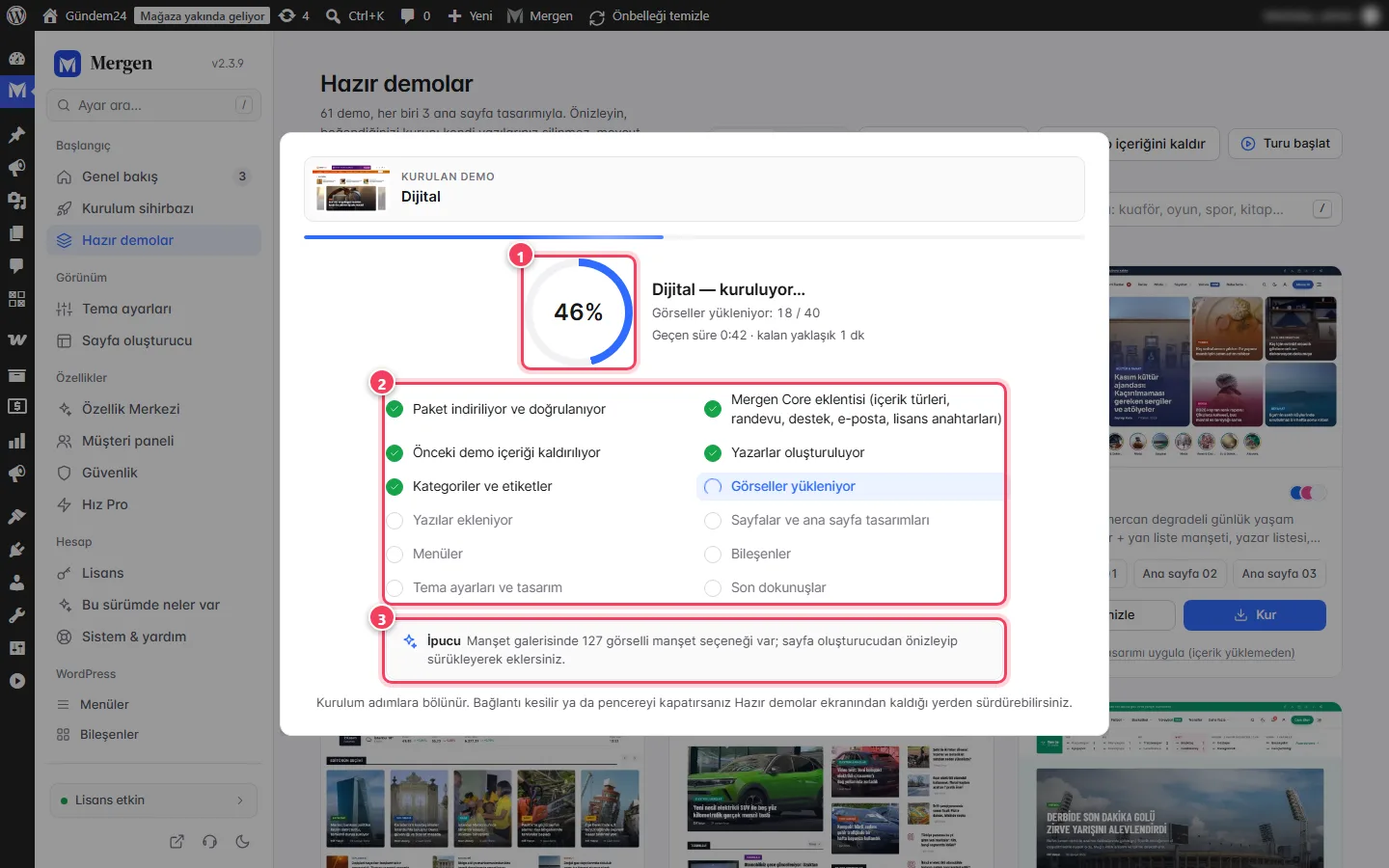
An import usually takes 1–4 minutes depending on the demo and your server. Images are the longest step.
Tip: If you close the window, the import waits; you can resume it from the Demos screen. Still, keeping the tab open until the import finishes is the fastest way.
Import complete
The "Demo imported" screen has three buttons:
- View site (1) — opens your site in a new tab.
- Customize homepage (2) — opens the page builder. See Page builder.
- Theme settings (3) — goes to the logo, color and menu settings.
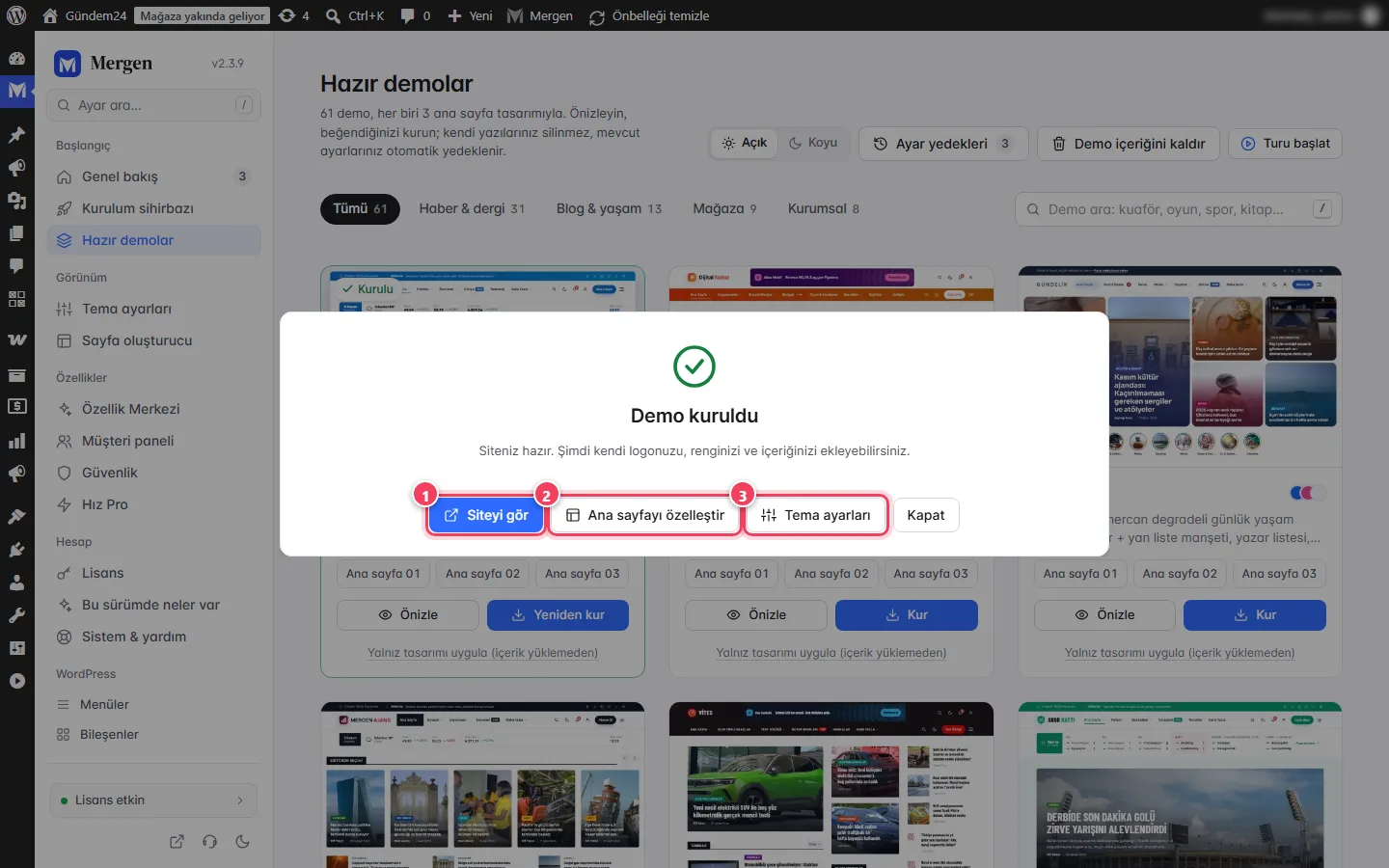
If some images could not be downloaded, this screen shows a yellow warning and the number of items that failed. This is usually a temporary connection problem; you can import the demo again with Reimport (with the remove previous demo content option on).
After the import, your site opens with the demo's homepage:
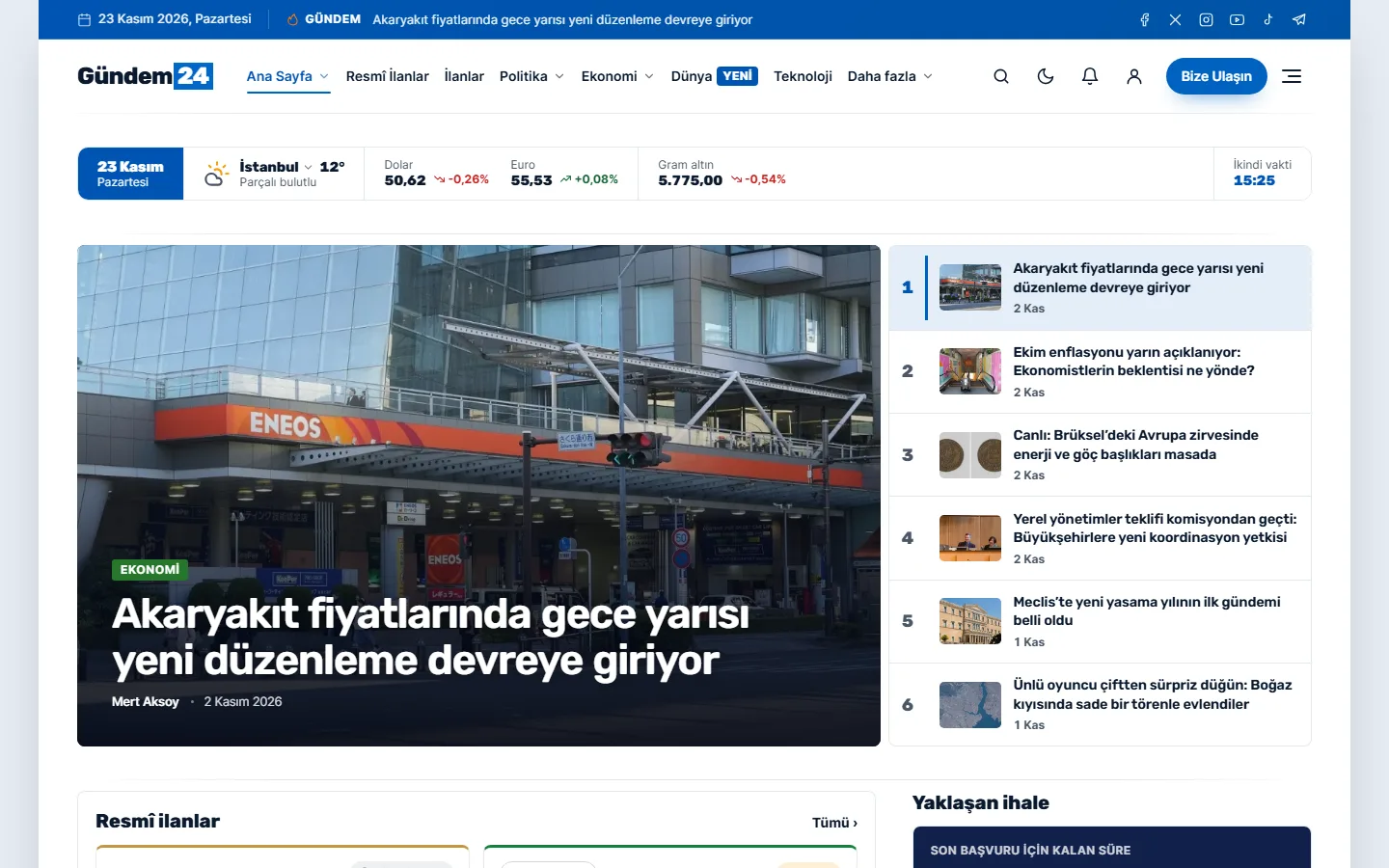
First things to do after the import
- Enter your logo and color: Mergen › Theme settings › General and Colors & fonts. See Theme settings.
- Edit the menu to match your own categories: Appearance › Menus.
- Replace the sample posts with your own, or delete them in bulk with Remove demo content.
- Update the company details on the contact, KVKK and cookie policy pages. See Privacy and cookies.
- Set up SMTP so that emails are delivered. See Email and SMTP.
4. Applying the design only
If you only want a demo's look without touching your existing content:
- Click the Apply design only (without content) link on the card.
- Read what will change in the window (1): colors, fonts and card style; header, menu and footer layout; post and archive page layout; homepage layout. Logo, social accounts, ad code and feature settings are kept.
- Choose the homepage layout you want (2).
- Click Apply design (3).
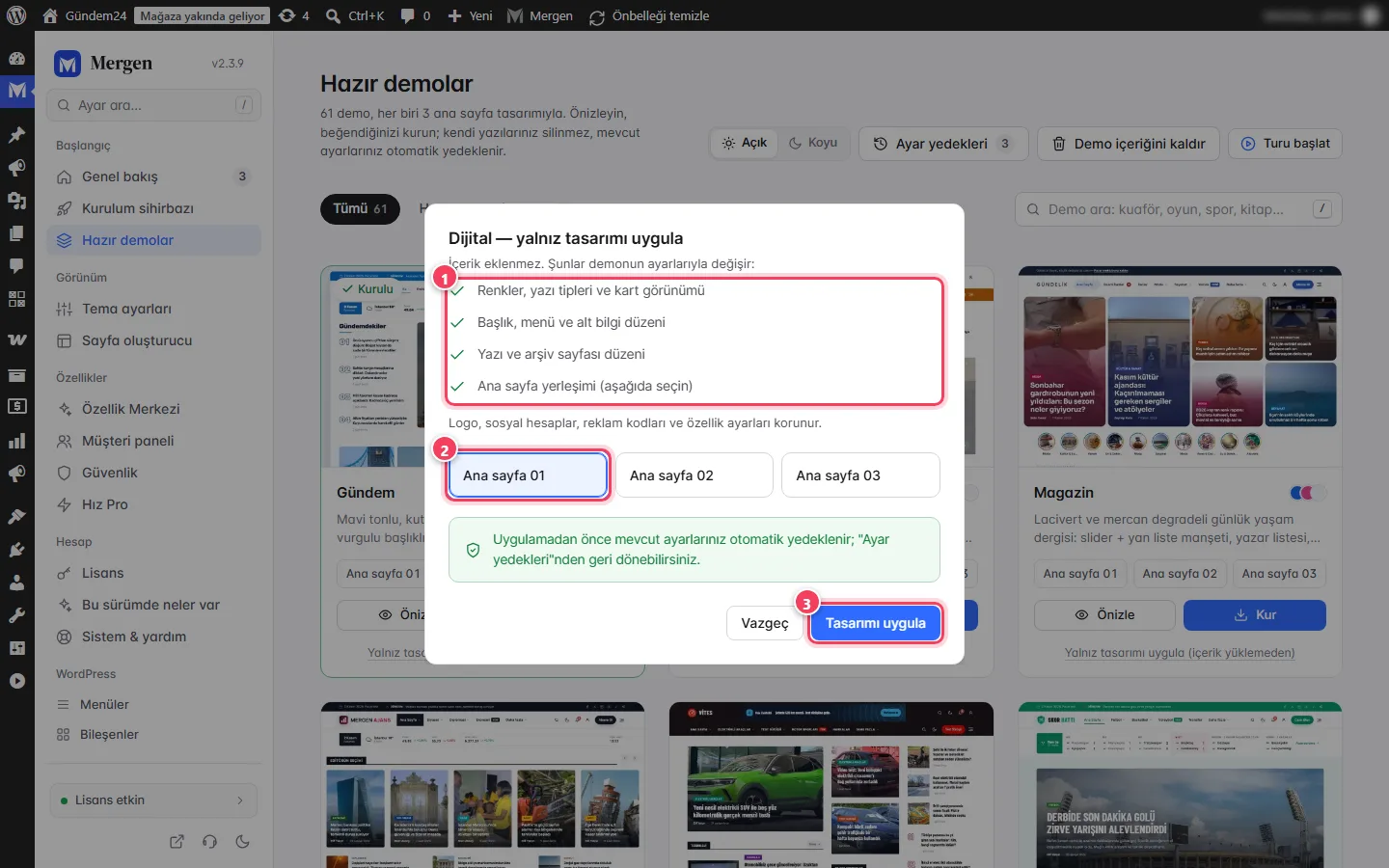
Apply design only: (1) what will change, (2) homepage, (3) Apply design. Turkish interface shown.
Note: The homepage layout is filled with your own categories. If the demo's categories don't exist on your site, the blocks show your latest posts; choose your own categories in the block settings.
5. Restoring a settings backup
Before every demo import, every "Apply design only" and every settings import, your theme settings, homepage layout and front page choice are backed up automatically. The last 5 backups are kept. Backups don't touch your posts or images.
- On the Mergen › Demos screen, click Settings backups at the top right. You are taken to the Settings backups box at the bottom of the page.
- Find the date you want to go back to in the list and click Restore.
- If you like, back up your current settings manually with Back up now (1).
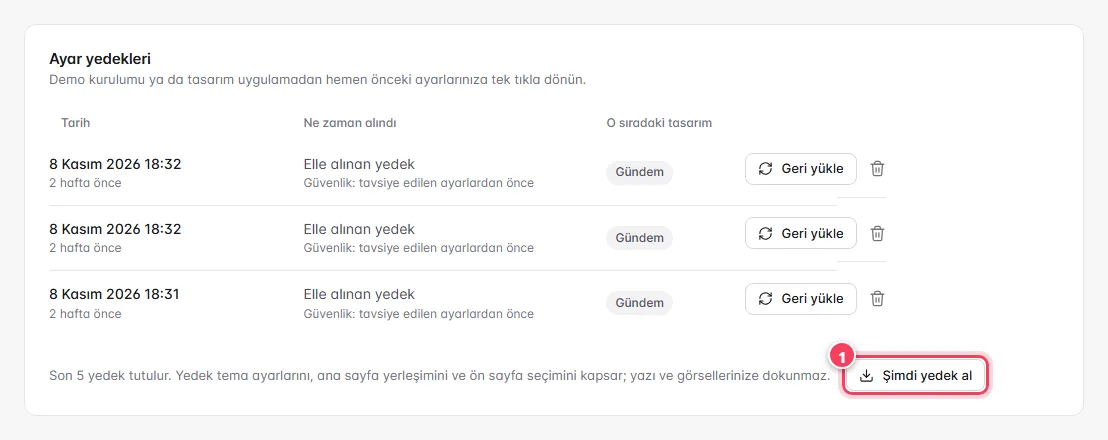
Settings backups box: (1) Back up now. Backups are listed with their dates as they are created. Turkish interface shown.
Tip: Restoring also backs up your current settings first. If you restore the wrong backup, you can still go back to the previous one in the list. The same list is also in the Mergen › System & help › Restore previous settings box.
6. Removing demo content
To delete the sample posts, pages, images, menus and categories the demo added in one go:
- Open Mergen › System & help and find the Demo content box. It reads "There are N items added by the demo import."
- Click Remove demo content (1) and confirm the dialog.
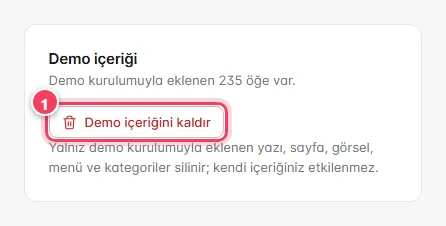
System & help › Demo content: (1) Remove demo content. Turkish interface shown.
The same button is also at the top right of the Demos screen.
Caution: Removal deletes only the items added by the demo import; posts you added are not affected. However, if you edited a demo post and turned it into your own, it still counts as a demo item and will be deleted. Copy such posts or save them as new posts before removing. Your theme settings and homepage design are not deleted.
7. Switching to another demo
- If you only want to change the look, Apply design only on the new demo is enough; your content stays in place.
- If you also want the new demo's content, leave Remove previous demo content on in the import window. The old demo's sample content is deleted and the new one added; your own posts are kept.
- If you changed your site name yourself earlier, it is kept when you import the new demo. If you never changed the name the previous demo set, it is updated to the new demo's name.
8. If the import stops halfway
If the connection dropped, the server timed out or you closed the window, the import is not lost:
- Open Mergen › Demos. A "Demo import stopped halfway (62%)." notice and the Next step appear at the top.
- Click Resume where it left off (1). Completed steps are not repeated.
- If you want to give up, click Cancel; you can delete the demo items already added later with Remove demo content.
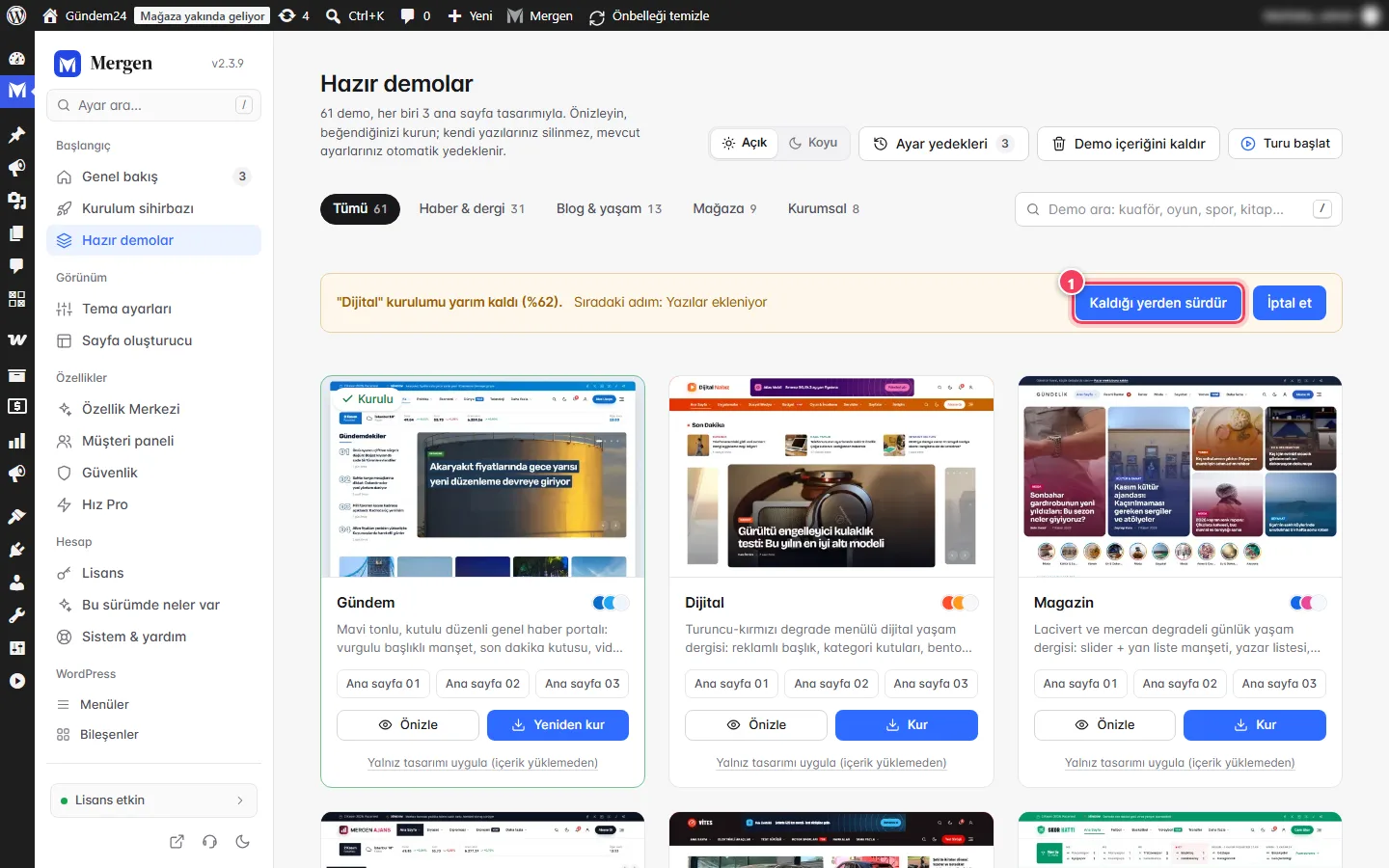
Unfinished import notice: (1) Resume where it left off. Turkish interface shown.
If an error occurs during the import, the window shows the title "Import paused", the error message and the step where it stopped; you can continue with the Retry (from where it left off) button.
Which demo should I choose?
Choosing among 61 demos can feel hard. Answer these questions in order:
- What is your site's main job? News publishing, personal content, sales or services? This question decides the tab: News & magazine, Blog & lifestyle, Shop or Corporate.
- What should be most visible on the homepage? Lots of current news (demos with dense grids), large images (magazine and lifestyle demos), a product showcase (shop) or services and trust elements (corporate).
- Do the colors and mood suit you? This is the least important question, because you can change colors and fonts later. Pick the demo whose layout you like and adapt the colors to yourself.
| Your need | Recommended type | Feature to look for |
|---|---|---|
| Local or national news site, many authors | News & magazine | Breaking news ticker, today strip, dense grids, columnists |
| Topic site such as business, crypto or sports | News & magazine | Live data blocks (exchange rates, gold, standings) |
| Food, travel, parenting or education blog | Blog & lifestyle | Cards with large images, magazine feed, newsletter call-to-action |
| Software license, game code or e-pin sales | Shop (license market, e-pin, game) | Key pool, instant delivery badge, My licenses |
| Physical products (electronics, clothing, books) | Shop (electronics, boutique, bookstore) | Filters, quick view, shipping bar |
| Clinic, beauty center, dentist | Corporate (clinic, dental clinic, beauty) | Online appointments, specialist cards |
| Law, accounting, consulting | Corporate (lawyer, accountant) | Practice areas, team, contact calls-to-action |
| Logistics, plumbing, construction | Corporate (logistics, plumbing, construction) | Quote calculator, service areas, emergency call bar |
Tip: If you like one demo's layout and another demo's colors, import the demo whose layout you like first, then change the colors on Theme settings › Colors & fonts. It's faster than trying to merge two demos.
What changes during a demo import, and what doesn't?
| Changes | Doesn't change |
|---|---|
| Theme settings (color, font, header, footer, post and archive layout) | Posts, pages and images you added |
| Homepage layout and front page choice | Users and passwords |
| Menus and widgets (when imported with sample content) | Your license details |
| Customer panel profile | Records such as orders, appointments and support tickets |
| Site name and tagline (only if the related option is on) | Other plugins' settings |
Your theme settings from before the import are always saved to Settings backups.
Common mistakes
| Symptom | Cause | Solution |
|---|---|---|
| An "Activate your license" notice instead of the Import button | No license entered | Enter the key on Mergen › License. Preview and design only also work without a license. |
| The import keeps stopping at the same step | PHP memory or time limit | Have the memory limit raised to 256 MB and the maximum execution time to 120 s, then click Resume where it left off. See FAQ. |
| Posts arrived, images didn't | The server blocks outbound connections or wp-content/uploads is not writable |
Ask your hosting provider to check the permissions; import the demo again. |
| The homepage still looks old | Cache | Click Clear cache in the admin bar; if you use a CDN, clear it there too. |
| The shop demo was imported but there are no products | WooCommerce could not be installed | Check that WooCommerce is active under Plugins and Reimport the demo. |
| The site name stayed as the old demo's name | The option was off | Change the site name under Settings › General, or turn on Replace site name and tagline with the demo's during the import. |
Related sections
- Installation and license — importing a demo from the wizard.
- Page builder — editing the imported homepage.
- Theme settings — changing the demo's colors and fonts.
- FAQ and troubleshooting