Privacy and cookies
Mergen comes with a categorized cookie consent that complies with KVKK (Turkey's Personal Data Protection Law) and GDPR. Analytics and ad code don't run, and external content such as YouTube videos, maps or social media embeds doesn't load, until the visitor gives consent. If the visitor chooses Essential only, no requests at all go from your site to third-party servers. This section covers cookie consent, legal pages and explicit consent in forms.
Note: The texts and settings Mergen provides are a technical foundation; they are not a substitute for legal advice. Fill in the texts with your company details and have your legal advisor review them.
Goal
- Turn on the cookie consent banner and adjust its text.
- Make sure your analytics and ad code runs only for visitors who give consent.
- Create the KVKK Privacy Notice, Cookie Policy, Privacy Policy and Imprint pages.
- Understand how the explicit consent box works in forms.
Prerequisites
- Mergen is active. The cookie banner comes turned on in the demos.
- If you use Google Analytics, Tag Manager, AdSense or the Meta pixel, have the code snippets at hand.
What does the visitor see?
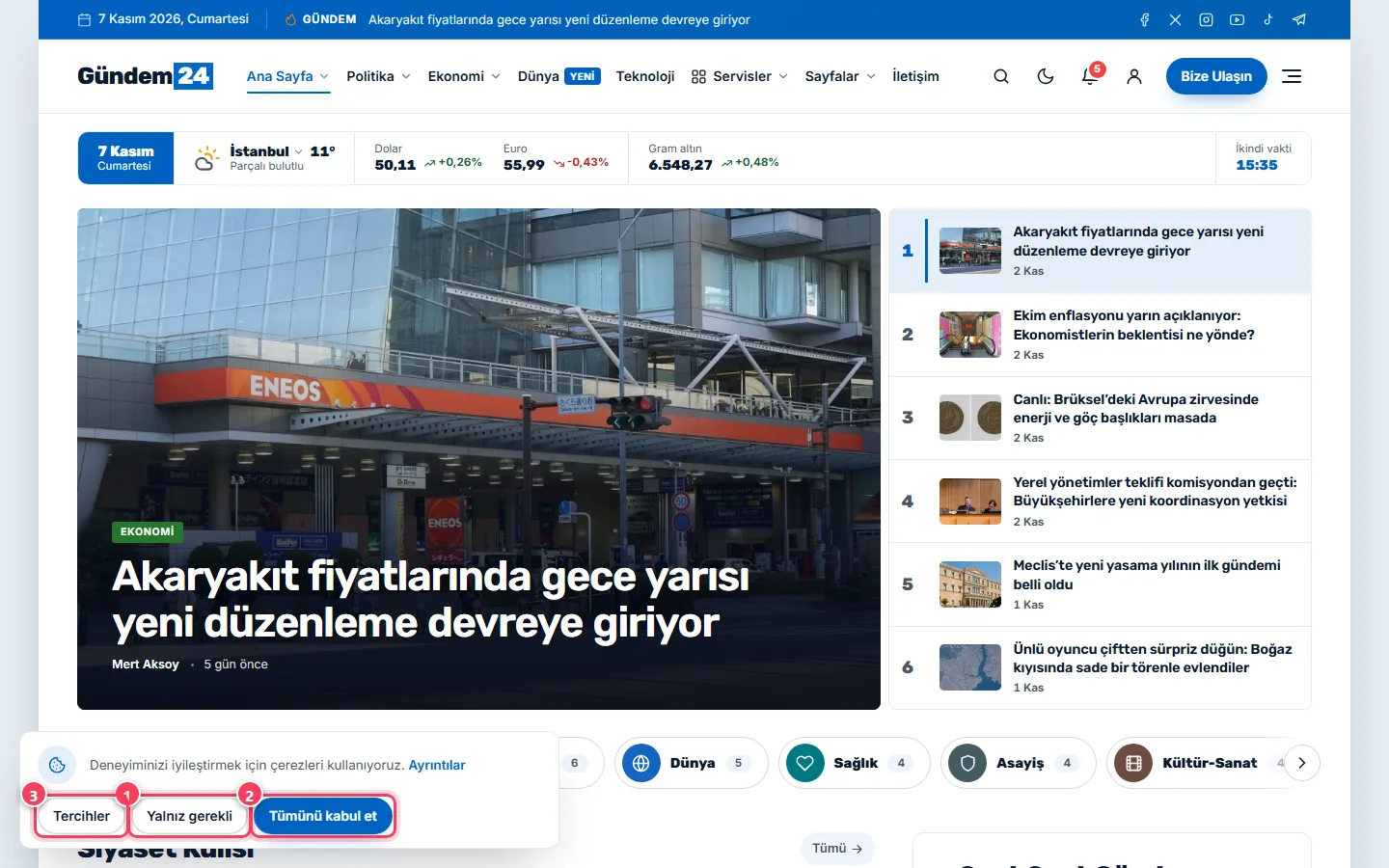
A first-time visitor sees the cookie banner at the bottom of the page. There are three options:
- Essential only (1) — only required cookies; no external content or tracking code is loaded.
- Accept all (2) — consent to every category.
- Preferences (3) — choose categories one by one.
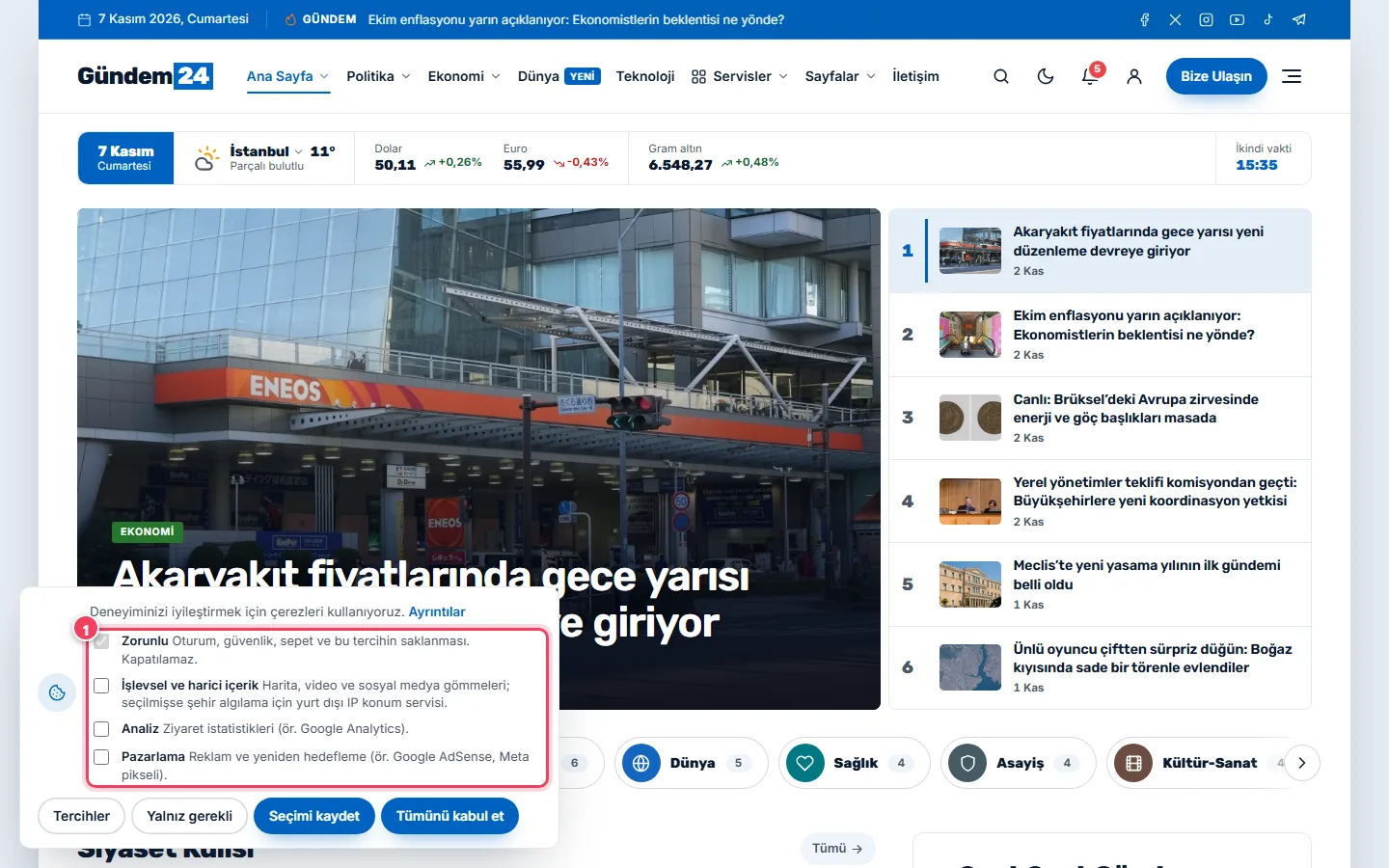
Clicking Preferences opens the categories with their descriptions (1); the Required category is always checked and can't be changed.
Visitors can change their choice later with the Cookie preferences link in the footer. You can open the same window by adding a custom link with the address #cerez-tercihleri to a menu.
Categories
| Category | Example | Consent |
|---|---|---|
| Required | Session, security, cart, cookie preference | Not needed, always on |
| Functional | External content (YouTube, Vimeo, maps), social media embeds | Visitor chooses |
| Analytics | Google Analytics, Clarity, Hotjar | Visitor chooses |
| Marketing | AdSense, Google Ads, Meta pixel, ad code | Visitor chooses |
Videos and maps in a category without consent are replaced by a placeholder; the visitor can allow that content with the Show this content button.
1. Set up cookie consent
- Open Mergen › Theme settings and switch to the Advanced tab.
- In the Privacy group, set the following:
- Cookie notice and consent management — on. The visitor chooses "Essential only", "Accept all" or individual categories.
- Notice text — if empty, the built-in, translatable text is used.
- Block third-party code before consent — leave it on. Scripts such as Google Analytics / Tag Manager, AdSense and ad code, the Meta pixel, Clarity and Hotjar, as well as map, video and social media embeds, don't load until the visitor allows the related category.
- Google Consent Mode v2 — turn it on if you use Google tags. A consent status signal is sent to Google tags (default: denied; updated with the visitor's choice). It is required for AdSense and Google Ads.
- Details link — the "Details" link in the banner. If empty, the cookie policy page or the WordPress privacy page is used.
- Newsletter double opt-in — subscribers are added to the list when they click the link sent to their email; for every subscription, the time, source page and an IP summary are stored as proof of consent.
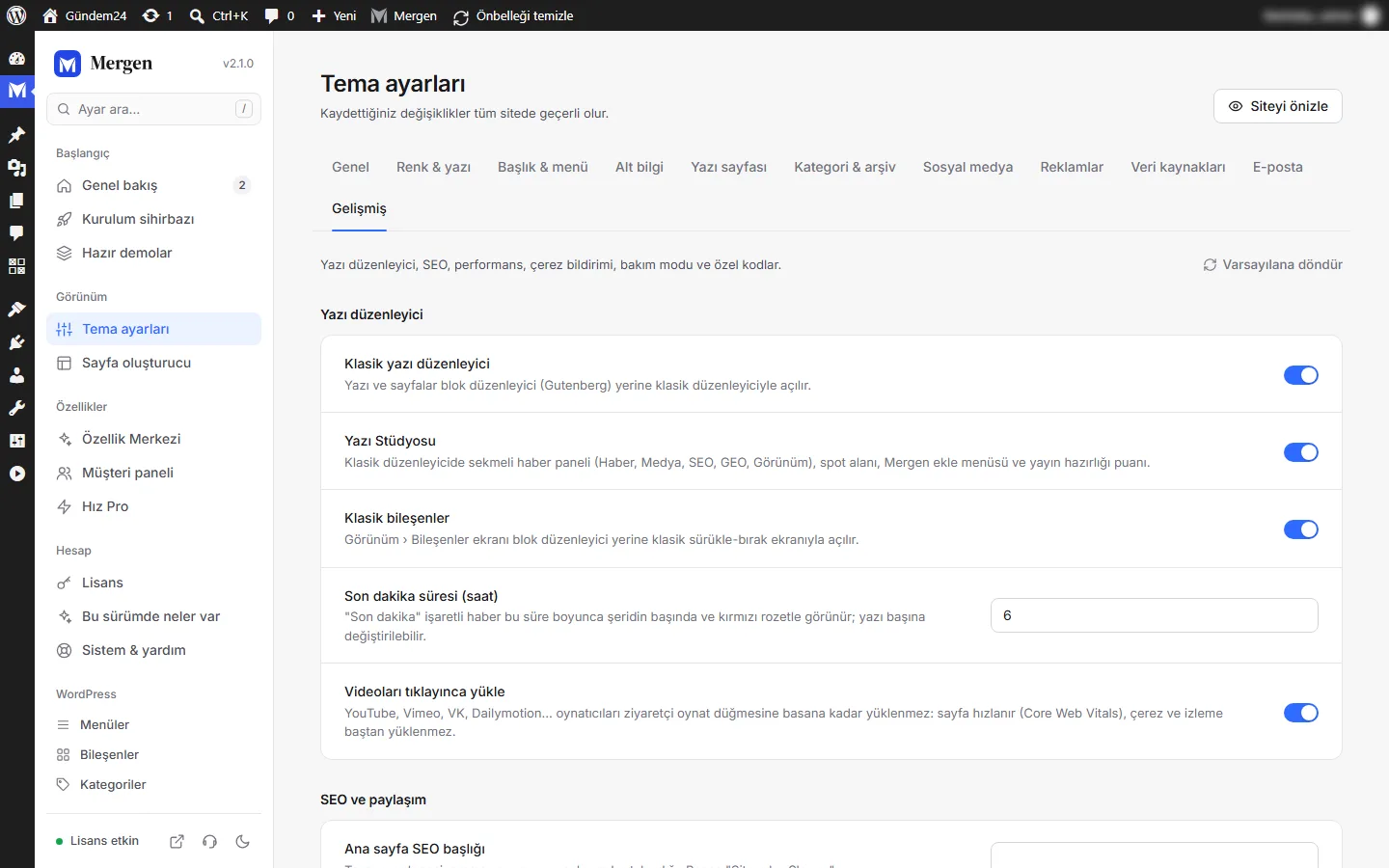
Theme settings › Advanced › Privacy. Turkish interface shown.
- Click Save in the bar at the bottom.
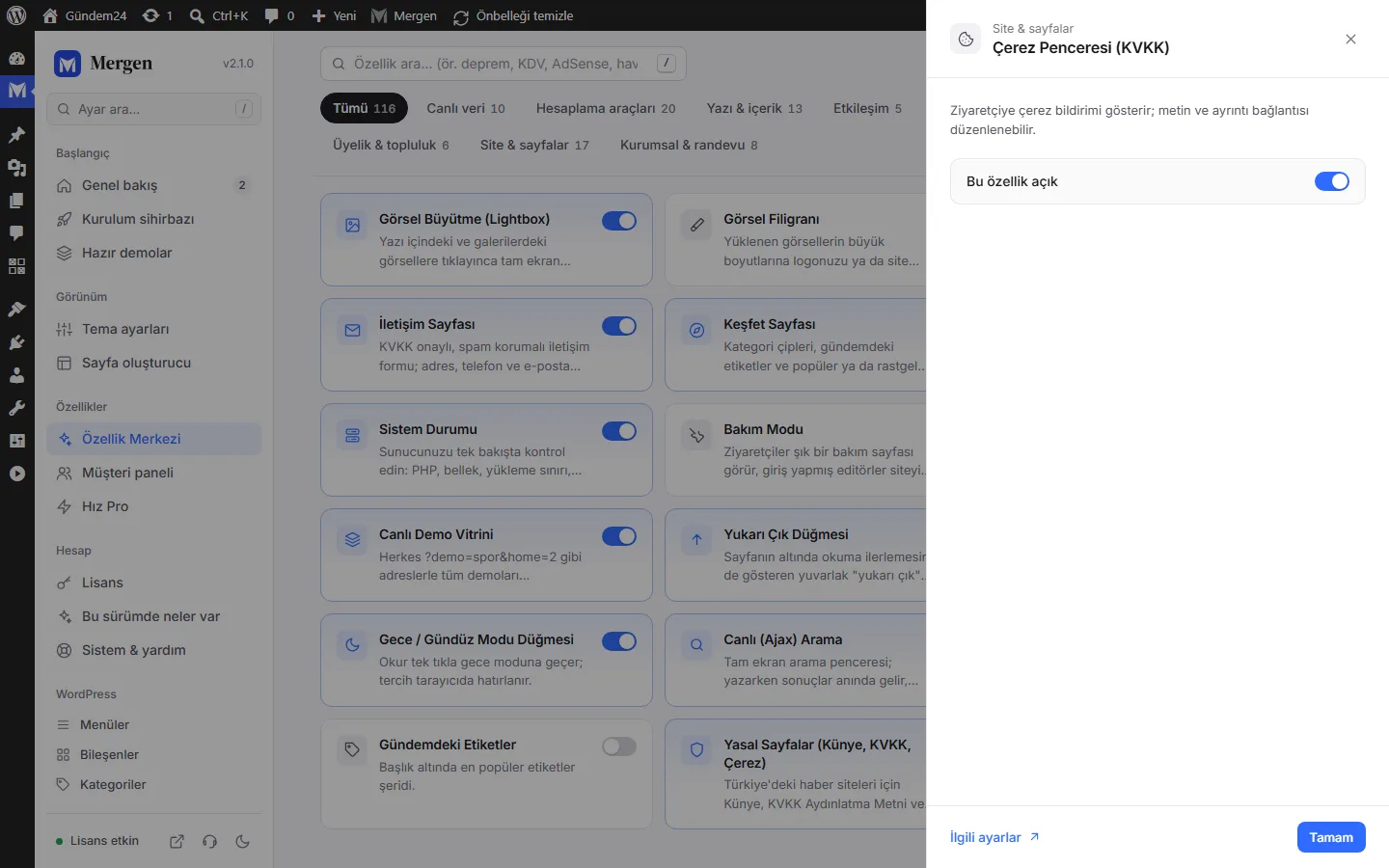
The same feature is also in the Feature Center as the Cookie Banner (KVKK) card:
2. Add your analytics and ad code
Add code to Mergen's Custom code fields rather than directly to theme files; that way it is tied to cookie consent.
- Open the Theme settings › Advanced › Custom code group.
- Paste your Google Analytics, Tag Manager or verification code into the Inside <head> (Analytics, verification) field.
- Choose the code's category from the Cookie category for <head> code list: Analytics for Analytics, Marketing for ad code.
- For code that must be added at the end of the page, use the Before </body> field and the Cookie category for </body> code list.
- Click Save.
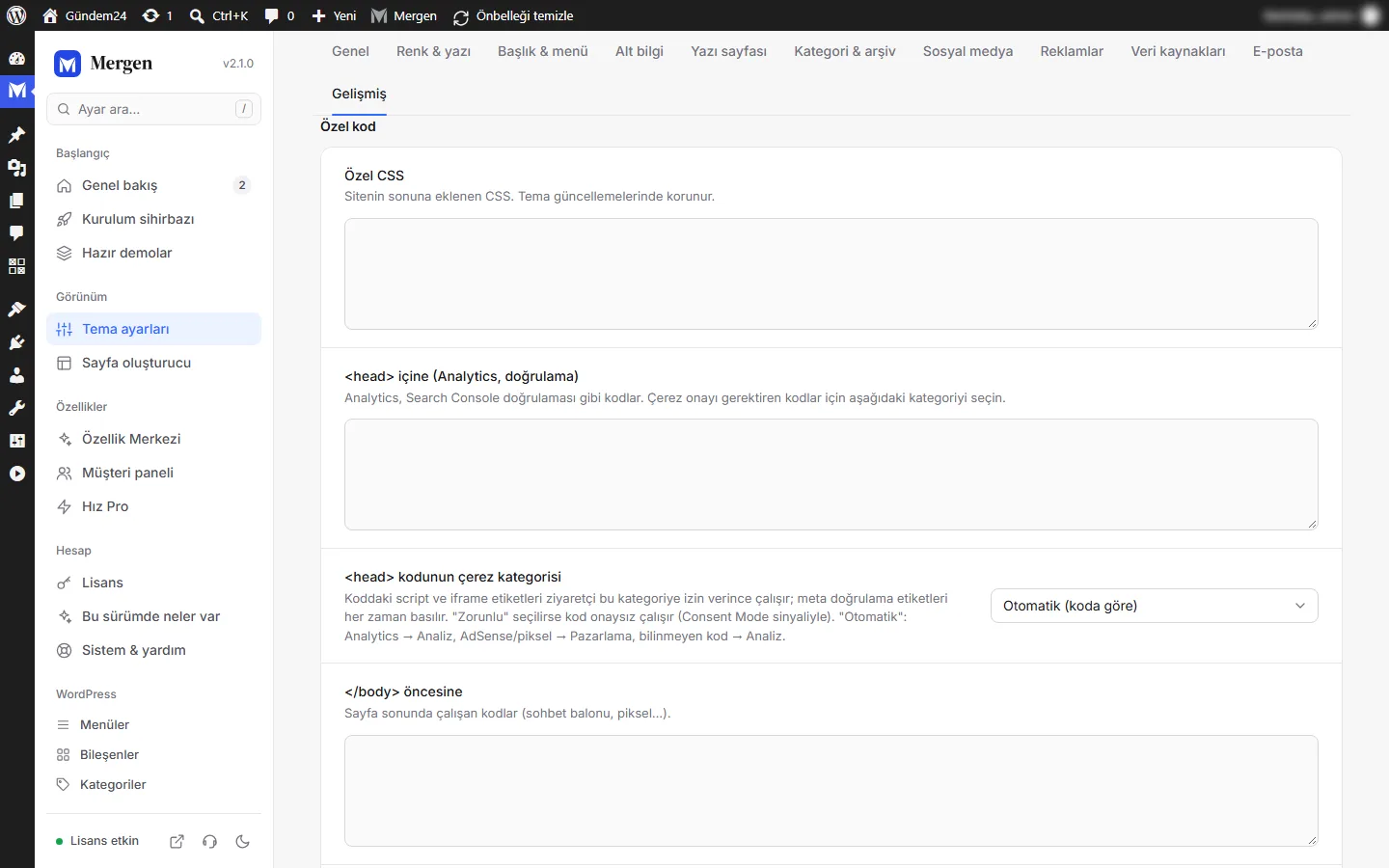
Advanced › Custom code: code fields and cookie categories. Turkish interface shown.
script and iframe tags in the code run when the visitor allows that category; meta verification tags (e.g. Google Search Console) are always output. If you choose Required, the code runs without consent; choose it only for code that is truly required.
Caution: Don't add Analytics both here and through a plugin; you'll get double counting. If you use a plugin, make sure it is also compatible with consent management.
3. "Essential only" = no external requests
When a visitor chooses Essential only, Mergen's cookie consent aims to send no requests from your site to other servers:
- Fonts: with Theme settings › Colors & fonts › Host fonts on my own server on, Google fonts are served from your site; the visitor's IP address doesn't go to Google.
- Analytics and ads: blocked until consent.
- Videos, maps, social embeds: a placeholder is shown; they load when the visitor allows them.
- Visitor's city: the city for weather and prayer times is determined on your site's own server (see below).
Tip: To try it yourself, open your site in a private window, choose Essential only and check in the Network tab of the browser's developer tools that requests go only to your own domain.
4. Legal pages
- In Mergen › Feature Center, find the Legal Pages (Imprint, KVKK, Cookies) card and turn it on.
- Click the card; in the Settings section, enter the Publisher / data controller, Responsible editor-in-chief (for news sites), Head office address, Phone, Contact email, KEP address (if any), Hosting provider (hosting company), Publication type and Last updated date.
- Create the KVKK Privacy Notice, Cookie Policy, Privacy Policy and Imprint pages with the buttons at the bottom of the card. If a page already exists, View page and Edit buttons appear instead.
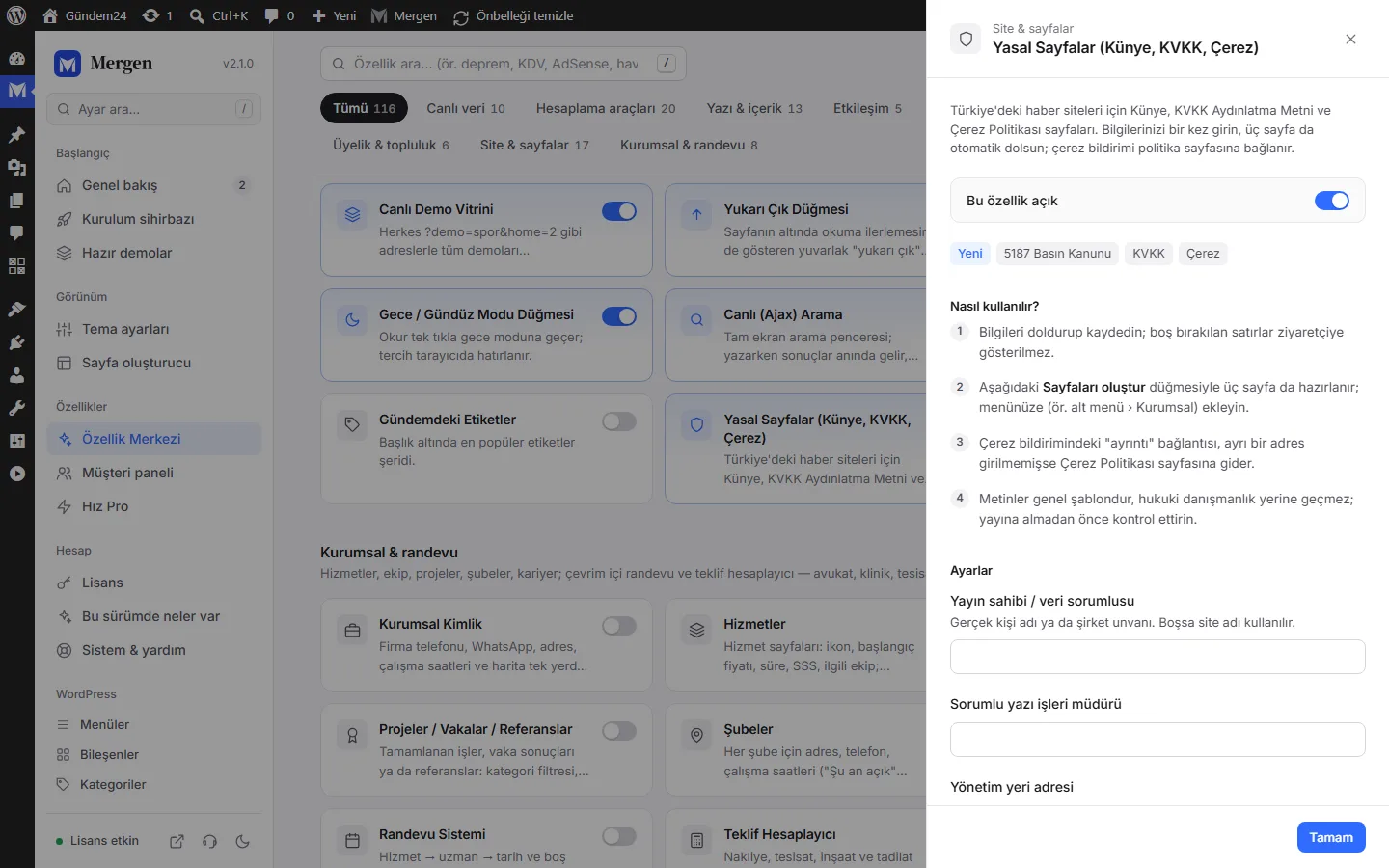
Feature Center › Legal Pages: company details and page creation. Turkish interface shown. - Read the pages that were created, edit them where needed and have your legal advisor review them.
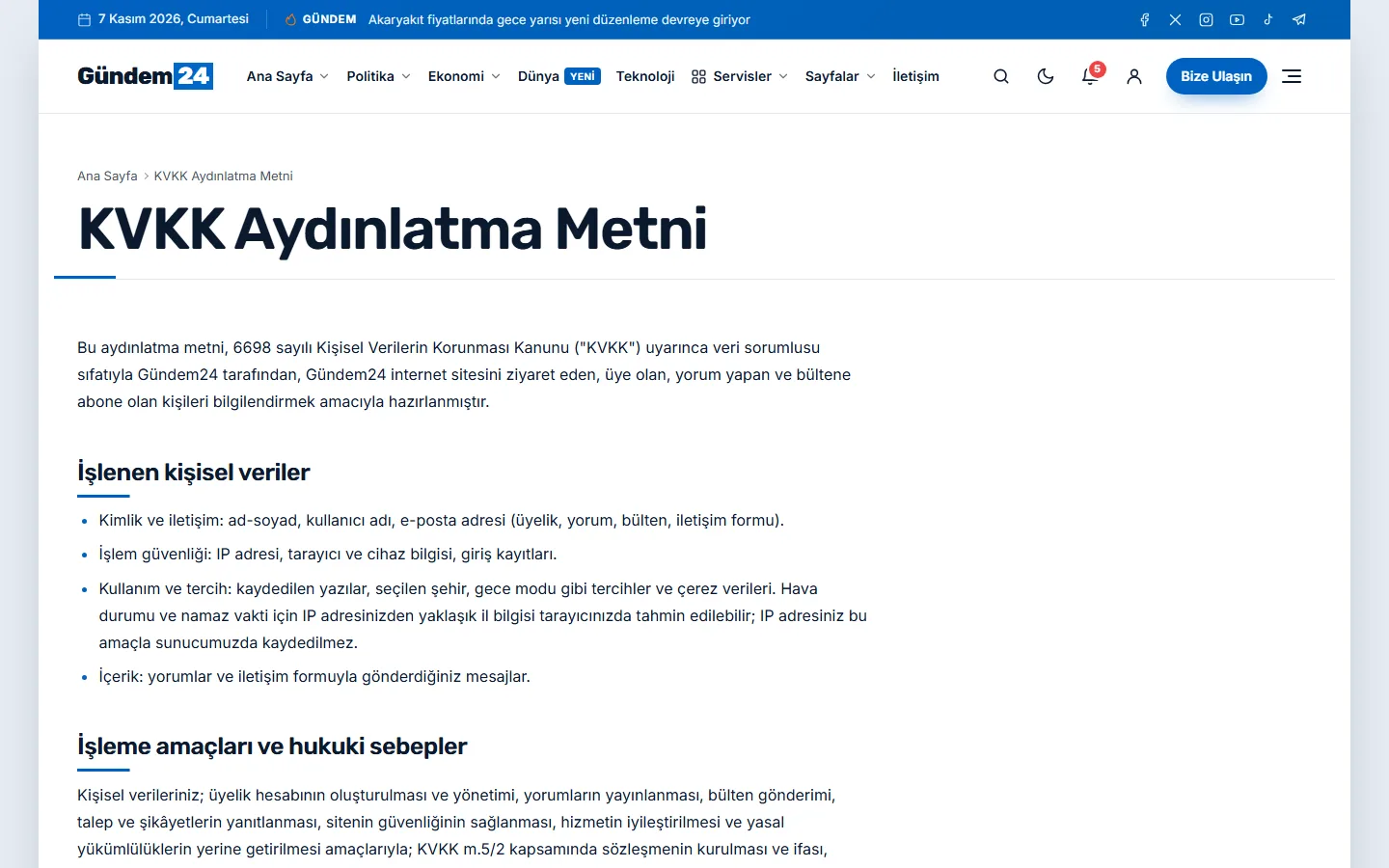
The KVKK Privacy Notice page as visitors see it. Turkish content shown. - Add these pages to the footer menu (Appearance › Menus).
Shop demos also create the Distance Sales Agreement, Preliminary Information Form and Return and Exchange Terms pages; corporate demos bring policy pages suited to their type of service (e.g. an appointment and cancellation policy).
5. Explicit consent in forms
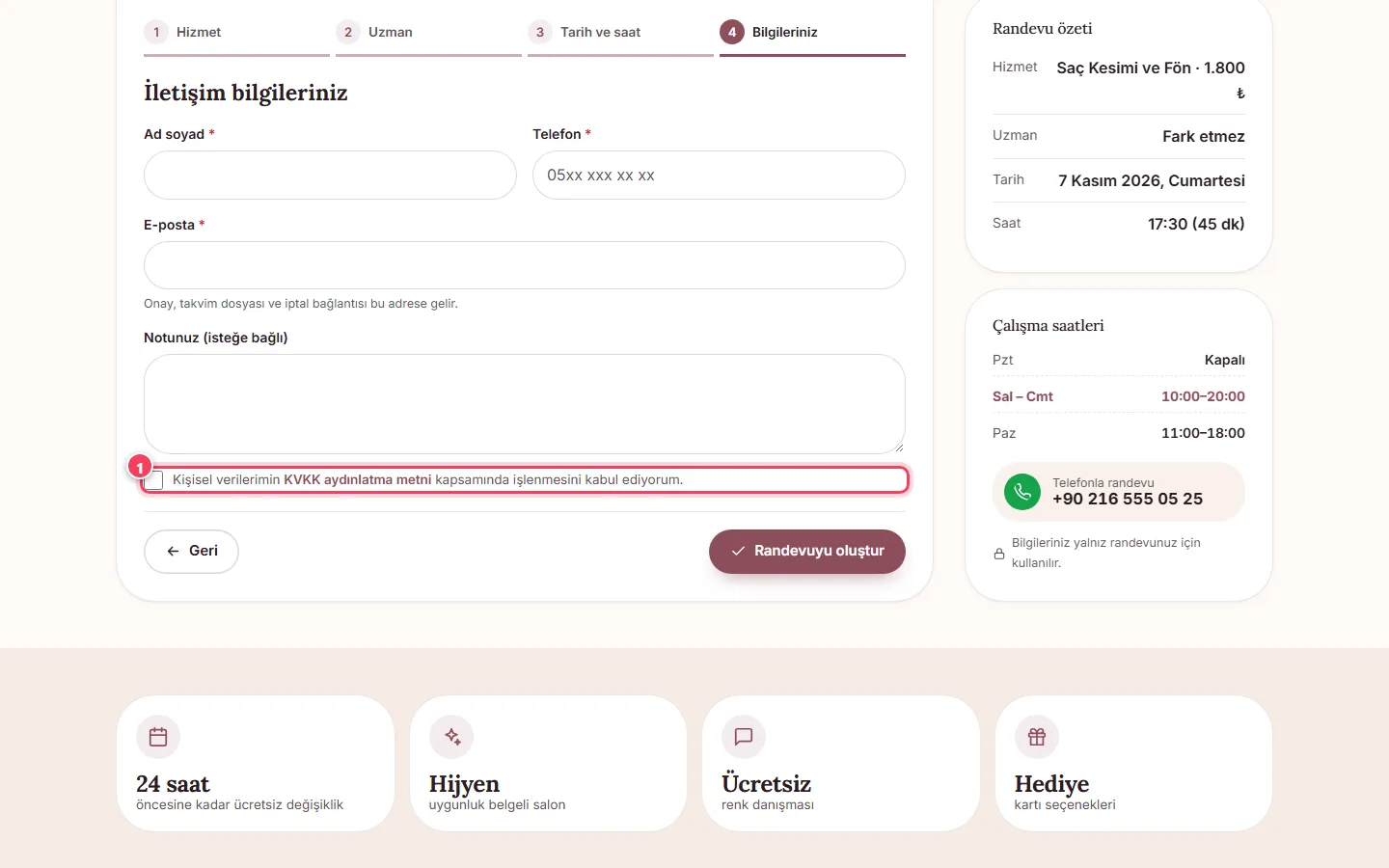
Appointment, quote, job application, support, contact and newsletter forms have an "I agree to the processing of my personal data under the KVKK privacy notice." box (1); the form can't be submitted until it is ticked. The link in the box goes to your KVKK Privacy Notice page.
Personal data from forms (appointments, applications, tickets) is stored in Mergen Core and connected to WordPress's Tools › Export / Erase Personal Data tools: when a person requests it, you can export or delete their data in one click. Members can also send these requests from the customer panel; see Customer panel › KVKK.
6. The visitor's city (weather, prayer times)
Weather, prayer times and the "Today" strip open for the province the visitor is in. No permission prompt appears for this:
- The visitor's connection IP address is looked up on your site's own server, in the Turkey IP–province table that comes with the theme. The IP address is not stored and not sent abroad; only the province name is determined.
- If the visitor uses a VPN, the province of the VPN exit point is shown; if they are abroad, the default city is shown.
- If your site is behind Cloudflare and Rules › Transform Rules › Managed Transforms › "Add visitor location headers" is on, Cloudflare's location data is used first.
- Visitors can always change the city manually with the city selector; their choice is remembered.
- IP-based location is sometimes inaccurate (some carriers route traffic through Istanbul or Ankara). That's why manual selection is always available.
Setting: Theme settings › Advanced › Privacy › Detect visitor city. Options: Automatic (the Turkey IP table that comes with the theme; no permission needed, no requests abroad — recommended), Server/CDN location data only, external IP service (only with "Functional" cookie consent) and Off.
Attribution: the IP–province table is built from IP Geolocation by DB-IP (CC BY 4.0) data. The theme automatically adds this information to WordPress's suggested privacy policy text (Settings › Privacy).
KVKK compliance checklist
Mergen's technical foundation covers a large part of compliance; the remaining steps concern your own business processes. Check the following before going live:
- Cookie consent is on and Block third-party code before consent is on.
- Your analytics, ad and pixel code is in the Custom code fields with the right cookie category; there is no second copy anywhere else (a plugin, a theme file).
- The KVKK Privacy Notice, Cookie Policy and Privacy Policy pages are up to date with your company details and linked in the footer menu.
- The Details link in the cookie banner goes to your cookie policy page.
- The KVKK consent box in forms is linked to your privacy notice (it is by default).
- Host fonts on my own server is on.
- Newsletter double opt-in is on (if you do email marketing).
- You have verified that members can send data copy and deletion requests with the Customer dashboard › Privacy (KVKK) options.
- You have decided how long you will keep appointment, application and support records, and you regularly delete those that have expired.
- Your hosting provider's details are in the Imprint and the privacy notice.
Note: Obligations such as VERBİS registration, the data processing inventory and the content of explicit consent texts are outside the technical foundation; review them with your legal advisor.
Newsletter subscription and double opt-in
With Advanced › Privacy › Newsletter double opt-in on, a subscriber is added to the list after filling in the form and clicking the link sent to their email. For every subscription, the time, source page and an IP summary are stored as proof of consent and included in the list downloaded with Overview › Site summary › Download CSV. People who want to unsubscribe use the link in the emails.
Example: adding Google Analytics 4
- Create your property in Google Analytics and, on the Admin › Data streams › Web screen, copy the code snippet in the Tagging instructions › Install manually section. The code starts with
<script async src="https://www.googletagmanager.com/gtag/js?id=G-...">. - In the Mergen › Theme settings › Advanced › Custom code group, paste the code into the Inside <head> (Analytics, verification) field.
- Choose Analytics from the Cookie category for <head> code list.
- If you also use ads (AdSense, Google Ads), turn on Google Consent Mode v2 in the Privacy group.
- Click Save and Clear cache.
- Open your site in a private window; first choose Essential only and confirm that you don't appear in Analytics' Realtime report, then allow Analytics in the cookie preferences and confirm that you do appear.
Common mistakes
| Symptom | Cause | Solution |
|---|---|---|
| My analytics data dropped | Visitors who don't consent aren't measured | This is a legal requirement. With Consent Mode v2 on, Google provides modeled data. |
| Code I added never runs | Wrong code category, or no consent given | Choose the right category under Advanced › Custom code; test in a private window with Accept all. |
| AdSense ads are empty | Consent Mode is off or there's no consent | Turn on Google Consent Mode v2; ads appear for visitors who grant "Marketing" consent. |
| The cookie banner reappears on every page | A caching plugin ignores the cookie | Add the mergen_consent cookie to your caching plugin's cache key, or use Speed Pro. |
| A grey box instead of a YouTube video | No functional consent | This is normal; the visitor allows it with Show this content. |
| The weather shows the wrong city | VPN or carrier IP | Visitors can change it with the city selector. See FAQ. |