Customer panel
The customer panel is the My account page (/hesabim/) where visitors who sign up on your site manage their own accounts. Profile, security, notifications, orders, license keys, appointments, quote requests, job applications and support tickets are gathered in one place. The panel is shaped by site type: on a news site the reader sees "Saved" and "My comments", in a game store the customer sees "My licenses", and in a clinic the patient sees "My appointments".
Goal
- Turn on membership and put the login/registration pages to use.
- Apply the preset profile that suits your site in one click.
- Set the order, name and icon of the panel sections.
- Match the panel's look (menu, cards, color) to your brand.
- Let members exercise their KVKK rights (data copy, account deletion) from the panel.
Prerequisites
- The Member login & registration feature must be on in Mergen › Feature Center (it comes on in the demos).
- If you want visitors to sign up by themselves, the Anyone can register box on the Settings › General › Membership row in WordPress must be checked, and the New User Default Role must be "Subscriber" or (in a store) "Customer".
- WooCommerce is needed for the order and license sections, and Mergen Core with the related feature (Appointment System, Support System, Careers) for the appointment/support/application sections.
How does the panel work?
A section is shown to members only when all three of these conditions are met:
- The section is on on the Customer dashboard screen.
- The module providing the section is active (e.g. WooCommerce and at least one product with a key pool for My licenses).
- The section makes sense on your site (e.g. My appointments never appears in a store with the appointment module off).
This way, when you turn on a new module, the related section appears by itself; when you turn it off, it disappears.
| Section | Address | What it shows | Required module |
|---|---|---|---|
| Summary | /hesabim/ |
Summary cards, recent notifications, profile status, quick access | — |
| My profile | /hesabim/profil/ |
Name, display name, photo, short bio, contact details | — |
| My orders | /hesabim/siparisler/ |
Orders, their statuses, invoices, Return request | WooCommerce |
| My licenses | /hesabim/lisanslarim/ |
License keys, e-pins, game codes; activation guide | WooCommerce + key pool |
| Downloads, My addresses, My wishlist | — | Downloadable files, billing/shipping addresses, wishlist | WooCommerce |
| Saved, My comments | — | Posts the reader saved and their comments | Saved Posts |
| My appointments | — | Upcoming and past appointments; cancel, reschedule | Appointment System |
| My quote requests, My applications | — | Quote requests, job applications | Quote Calculator, Careers |
| My support tickets | /hesabim/destek/ |
Tickets, conversations, new ticket | Support System |
| Notifications | /hesabim/bildirimler/ |
On-site notifications (order delivered, ticket answered…) | Notification bell |
| Security | /hesabim/guvenlik/ |
Password change, sessions | — |
| Delete account | /hesabim/gizlilik/ |
Personal data copy and account deletion request (KVKK) | — |
1. Choose a preset profile
If you didn't import a demo, or if you changed your site type, make the panel suit your site in one click.
- Open Mergen › Customer dashboard from the left menu.
- In the Start from scratch: preset profiles section (1), find the card that fits your site. The chips under the card show the sections that profile will turn on.
- Click Apply (2). The button of the applied profile shows Applied.
- Click Open dashboard in new tab (3) to see the result.
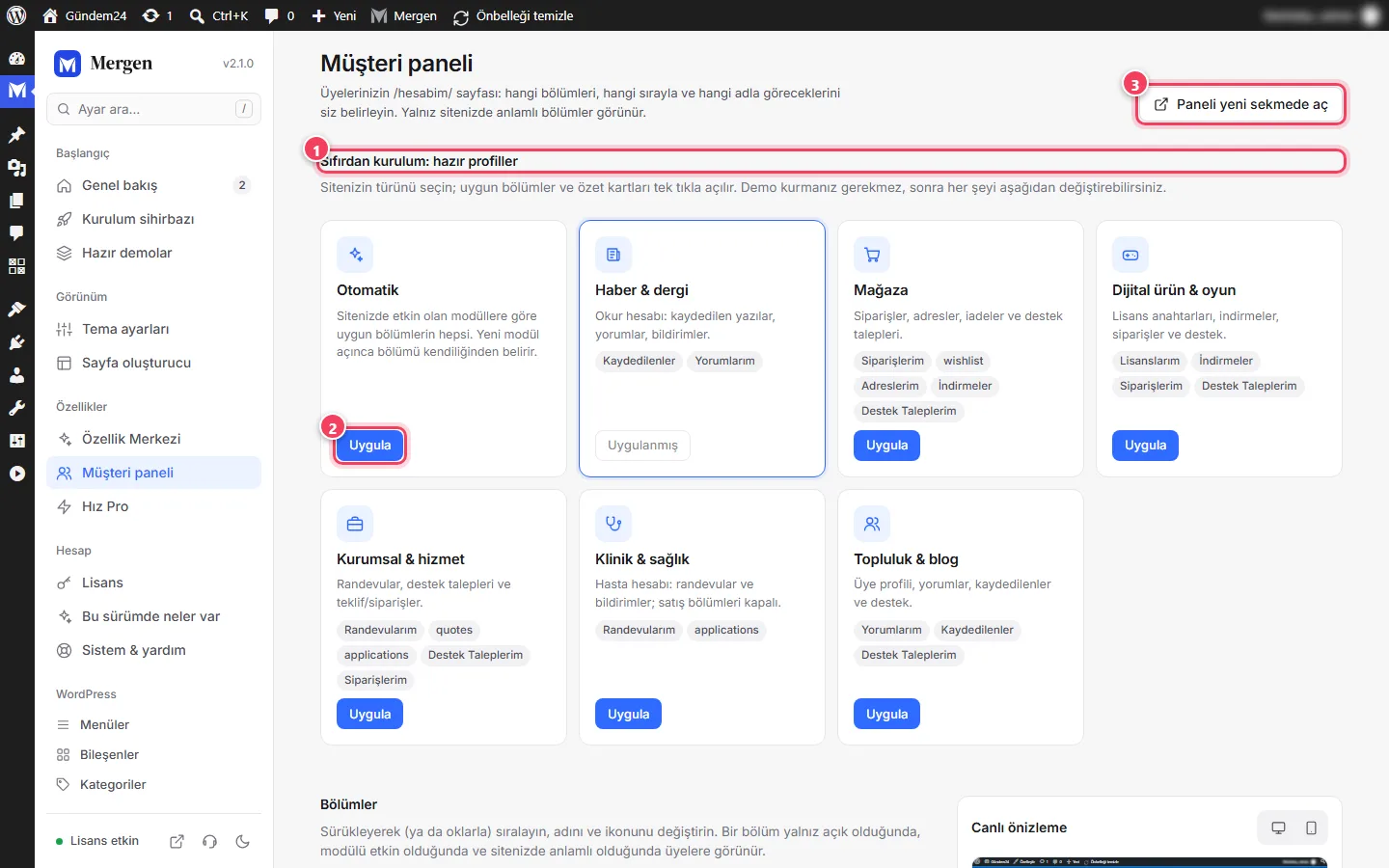
Mergen › Customer dashboard: (1) preset profiles, (2) Apply, (3) Open dashboard in new tab. Turkish interface shown.
| Profile | Who is it for? | Sections turned on |
|---|---|---|
| Automatic | If you're unsure | All suitable sections based on the modules active on your site; when you turn on a new module, its section appears by itself |
| News & magazine | News, magazine | Reader account: saved posts, comments, notifications |
| Shop | Physical product sales | Orders, wishlist, addresses, downloads, support tickets |
| Digital products & games | Licenses, e-pins, games | My licenses, downloads, orders, support tickets |
| Corporate & services | Law, construction, logistics, consulting | Appointments, quote requests, applications, support, orders |
| Clinic & health | Clinic, dentist, beauty | Patient account: appointments and notifications; sales sections off |
| Community & blog | Blog, community | Member profile, comments, saved posts, support |
Tip: When you import a demo, the panel profile is already set according to the demo's type. Applying a profile doesn't touch your demo content; it only changes the panel sections.
2. Edit the sections
- Scroll down to the Sections heading on the same screen (1).
- Reorder the sections by dragging them (or with the arrows).
- On each row you can change the Section name (e.g. "My purchases" instead of "My orders") and the Icon, and turn the section on or off with the switch.
- The Live preview on the right (2) shows your changes without saving; switch between desktop and phone views with the icons at the top.
- Click Save in the bar at the bottom of the screen.
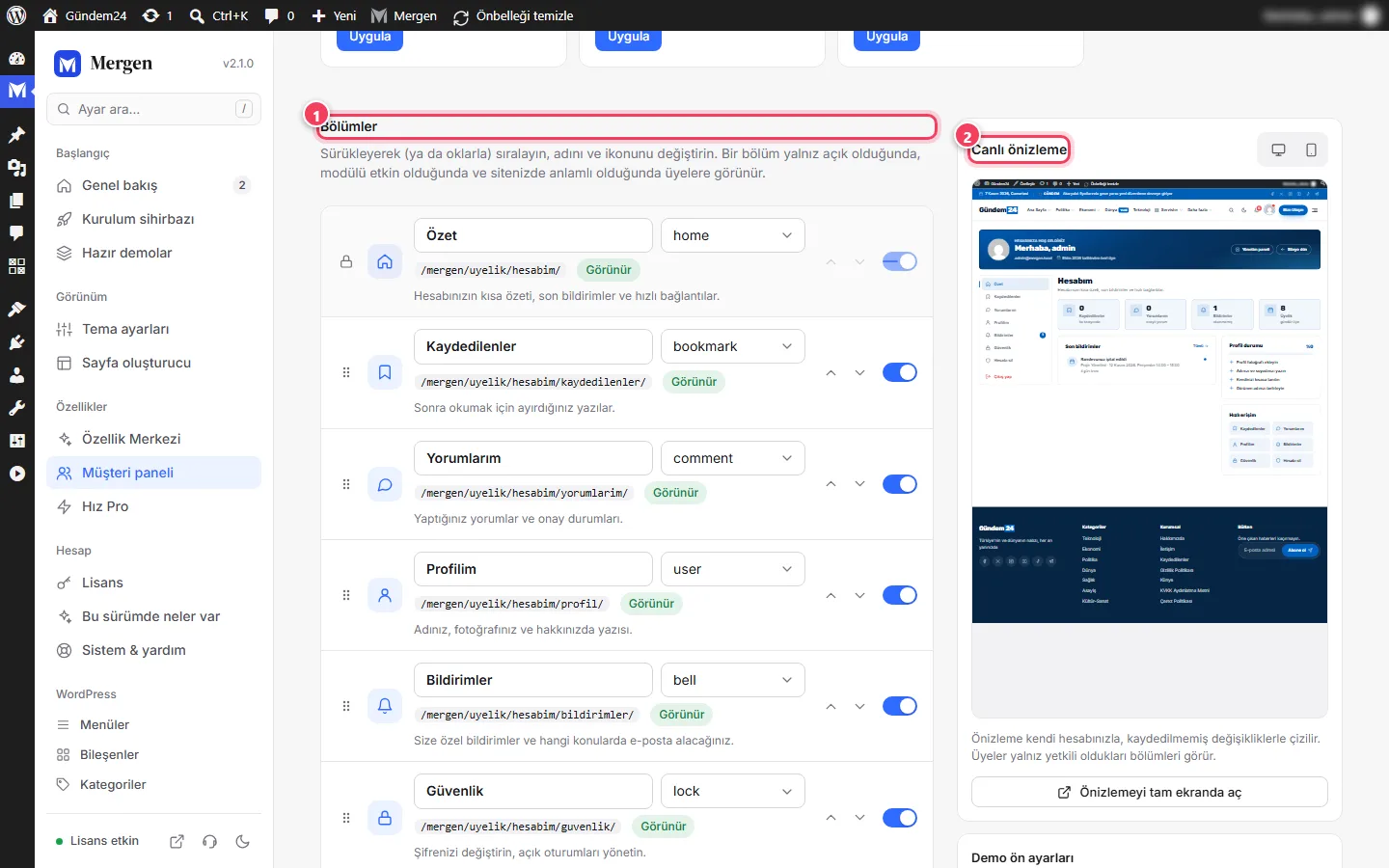
Sections: (1) drag-and-drop order, name and icon; (2) Live preview. Turkish interface shown.
A section whose module is off appears faded in the list, with an explanation such as "The module that adds this section is not installed" or "module off" next to it.
Note: The Summary section is locked; it is always first and can't be turned off.
Summary cards
In the Summary cards group, you choose the counter cards shown at the top of the Summary page: number of orders, number of license keys, upcoming appointment, unread notifications, saved posts, membership length and so on. Three or four cards are recommended.
3. Set the look
In the Appearance group:
| Setting | Options |
|---|---|
| Desktop menu (1) | Side menu or Tabs on top |
| Mobile navigation | Bottom tab bar (app-like on phones) or Drawer menu |
| Welcome area | Cover (gradient) or Plain |
| Card style | Soft color, White card or Outline |
| Density | Comfortable or Compact |
| Dashboard accent color (2) | If empty, the theme's primary color |
| Welcome line | Your own text instead of "Welcome to your account" |
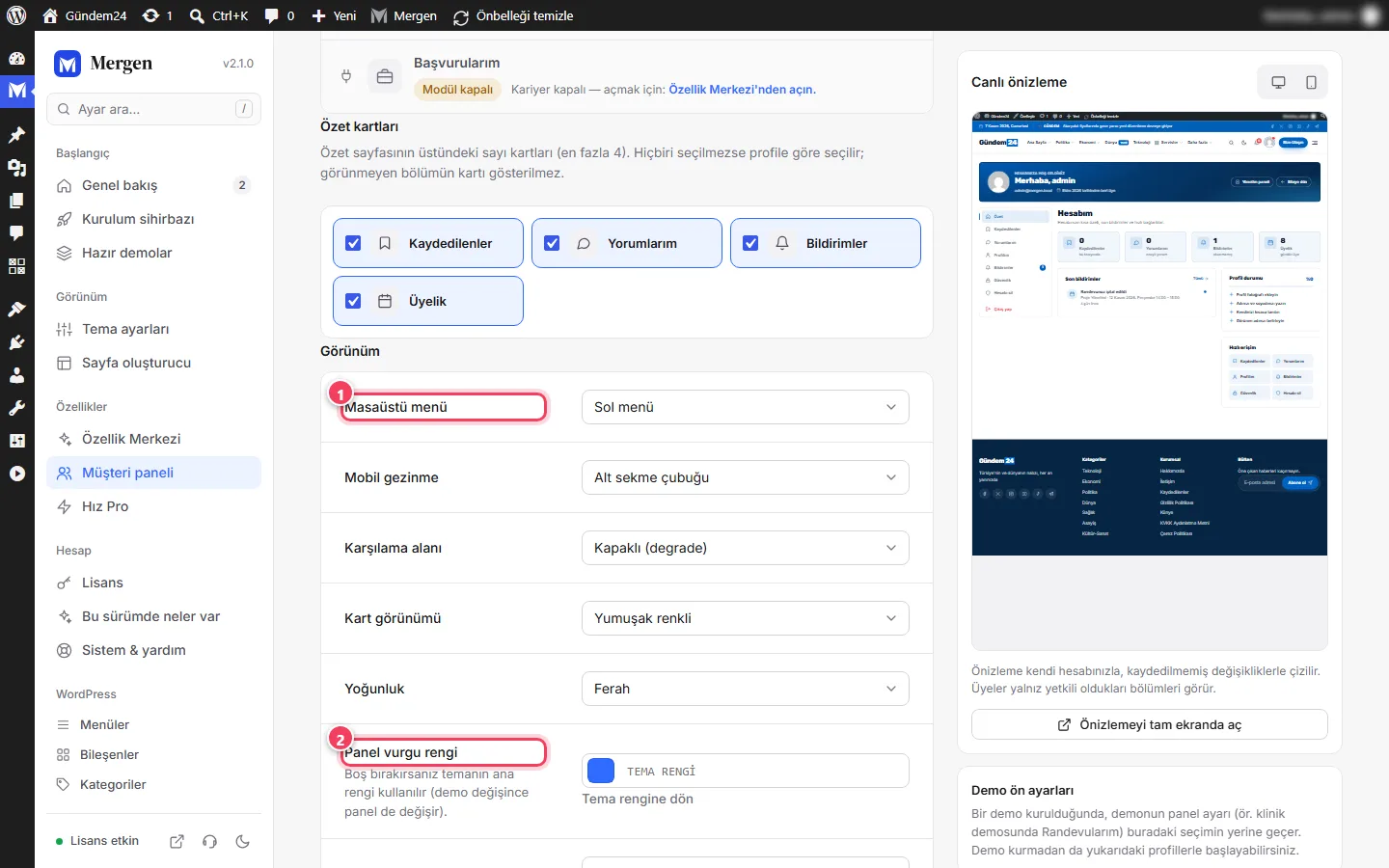
4. KVKK options
The Privacy (KVKK) group has three options:
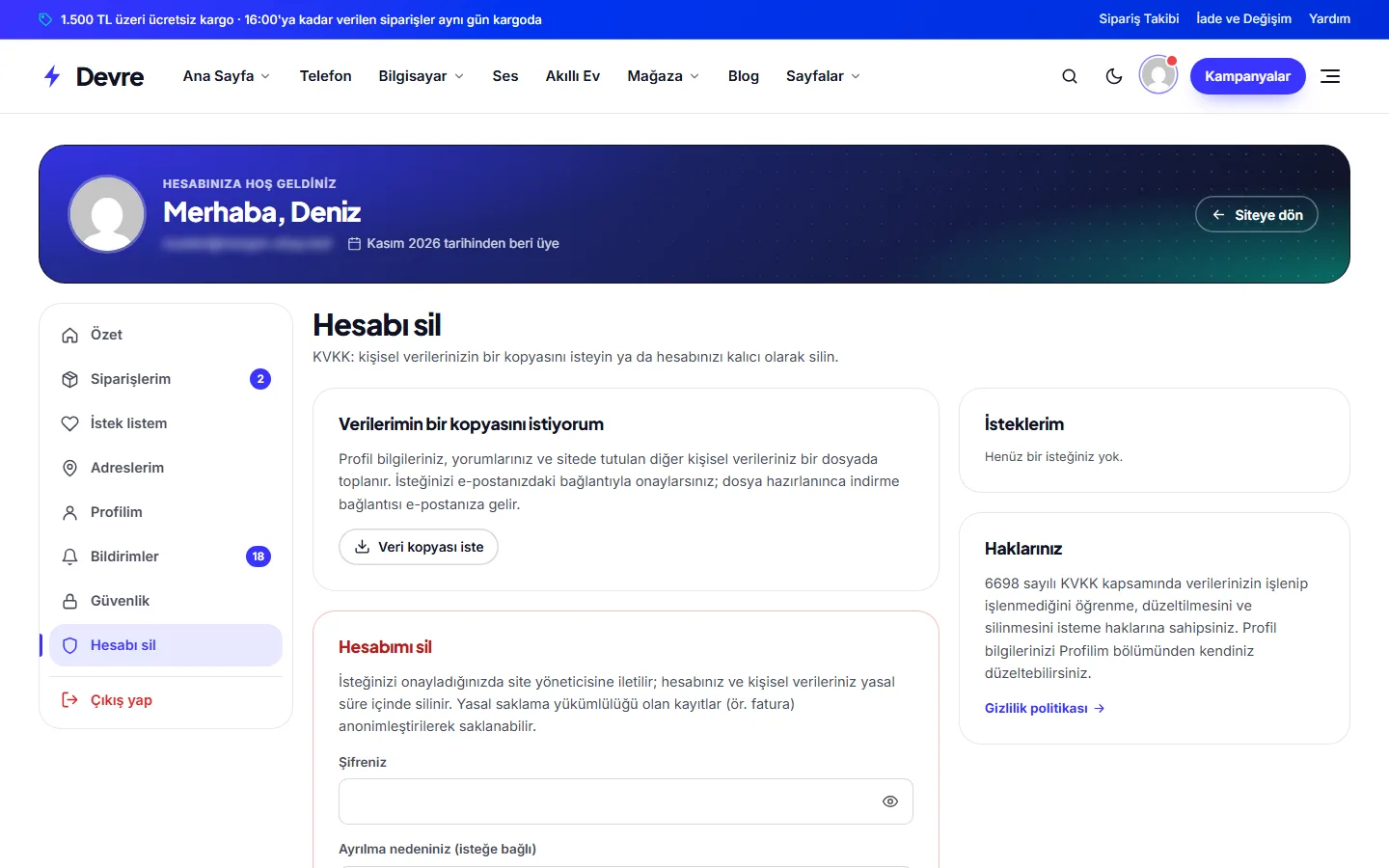
- Let members request a copy of their personal data (1): the member requests a copy of their data from the Delete account page; it is prepared with WordPress's personal data export tool.
- Let members request account deletion (2): the member requests the deletion of their account; the request lands on the Tools › Erase Personal Data screen.
- Automatically process confirmed deletion requests: when the member clicks the confirmation link in the email, the deletion is carried out automatically. If it's off, you approve the request.
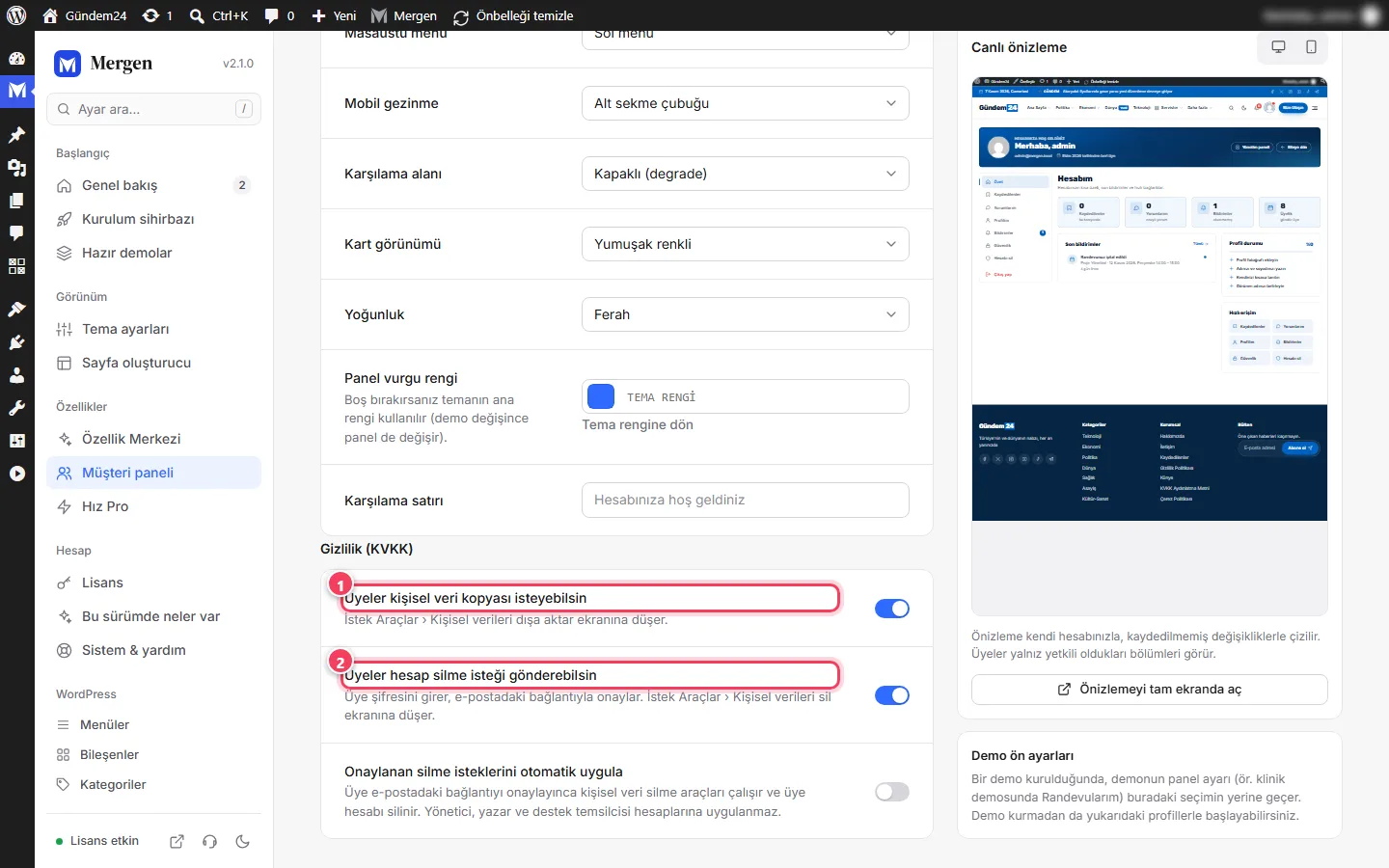
Caution: In a store, order and invoice records that are subject to a legal retention obligation are kept anonymized by WooCommerce even if the account is deleted. Consult your accountant before turning on automatic deletion.
How do your members see the panel?
Login and registration
When a visitor who isn't logged in goes to /hesabim/, Mergen's designed login page opens. The same page has Sign up, Forgot password and the password reset steps; the user icon in the header links here too. The texts adapt to your site type (such as "Track your orders" in a store and "Manage your appointments" on a corporate site).
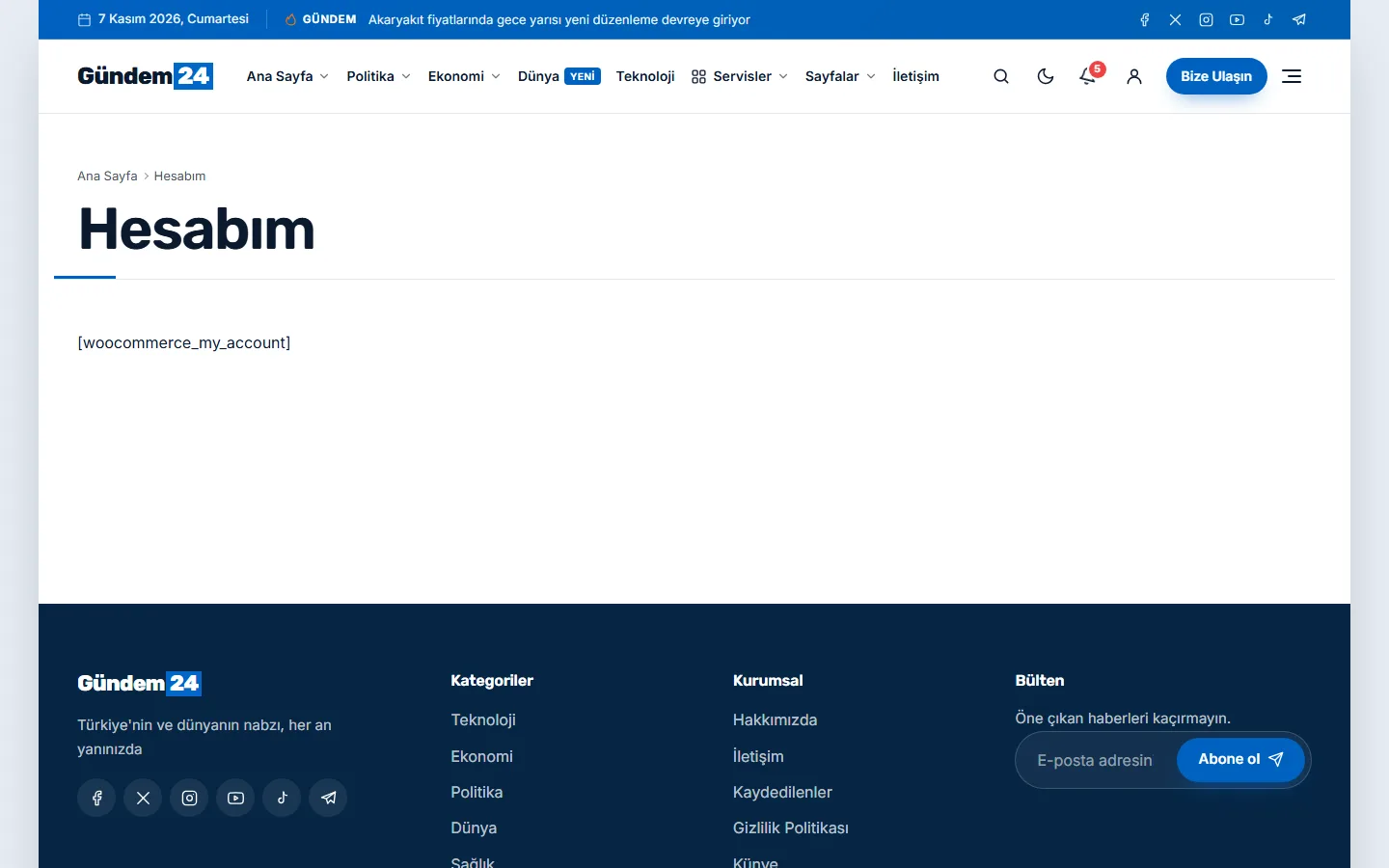
Tip: Turn on Feature Center › Security › CAPTCHA (Turnstile / reCAPTCHA) against spam registrations. Failed Login Protection also stops brute-force attempts.
Important: If your site is behind Cloudflare or another proxy, open your origin server IP to that proxy only. Use LiteSpeed's IP in proxy header (Use Client IP in Header) setting only with a trusted IP list: when the server resolves the header before Mergen, anyone reaching the origin directly can spoof their IP address.
Summary
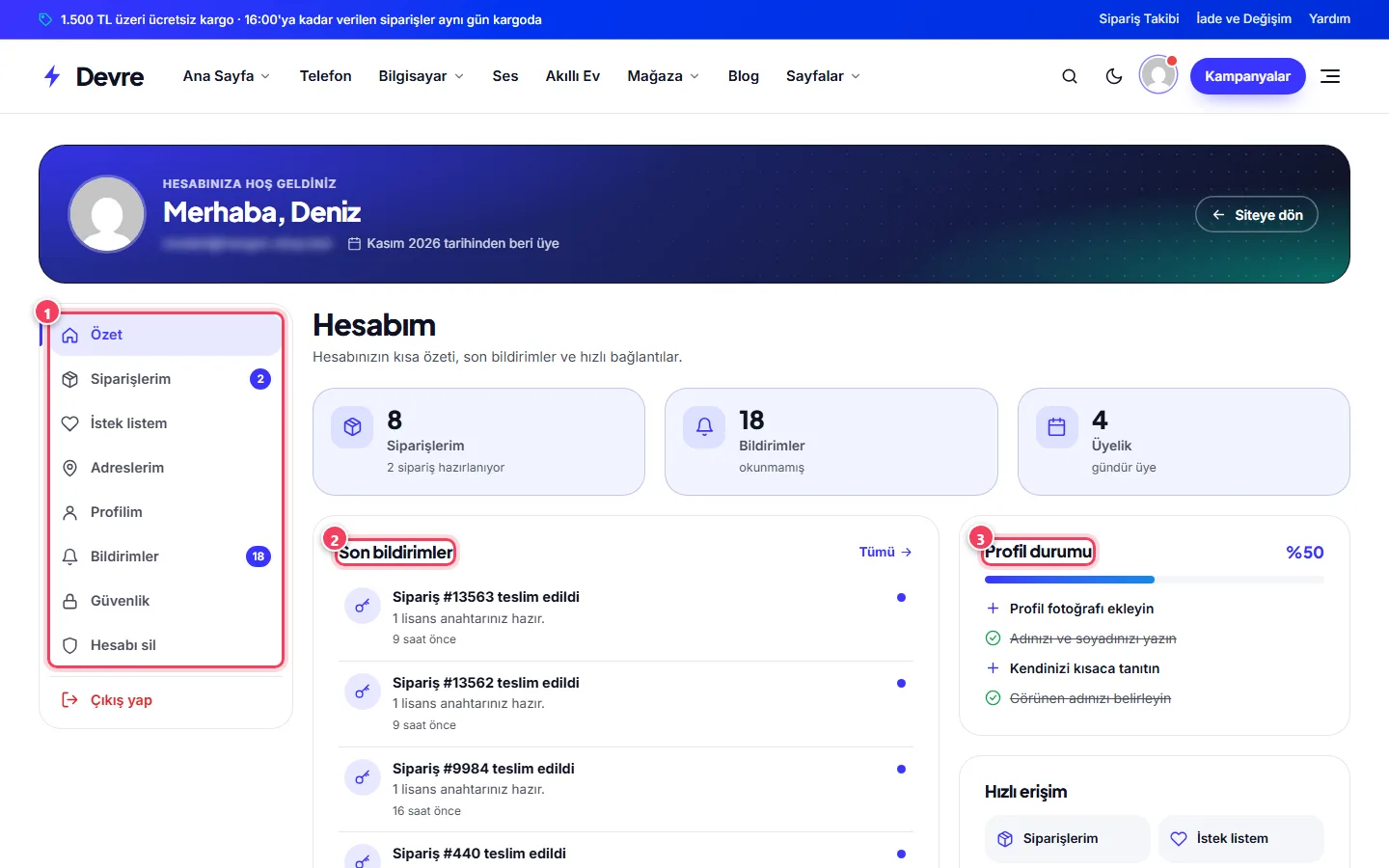
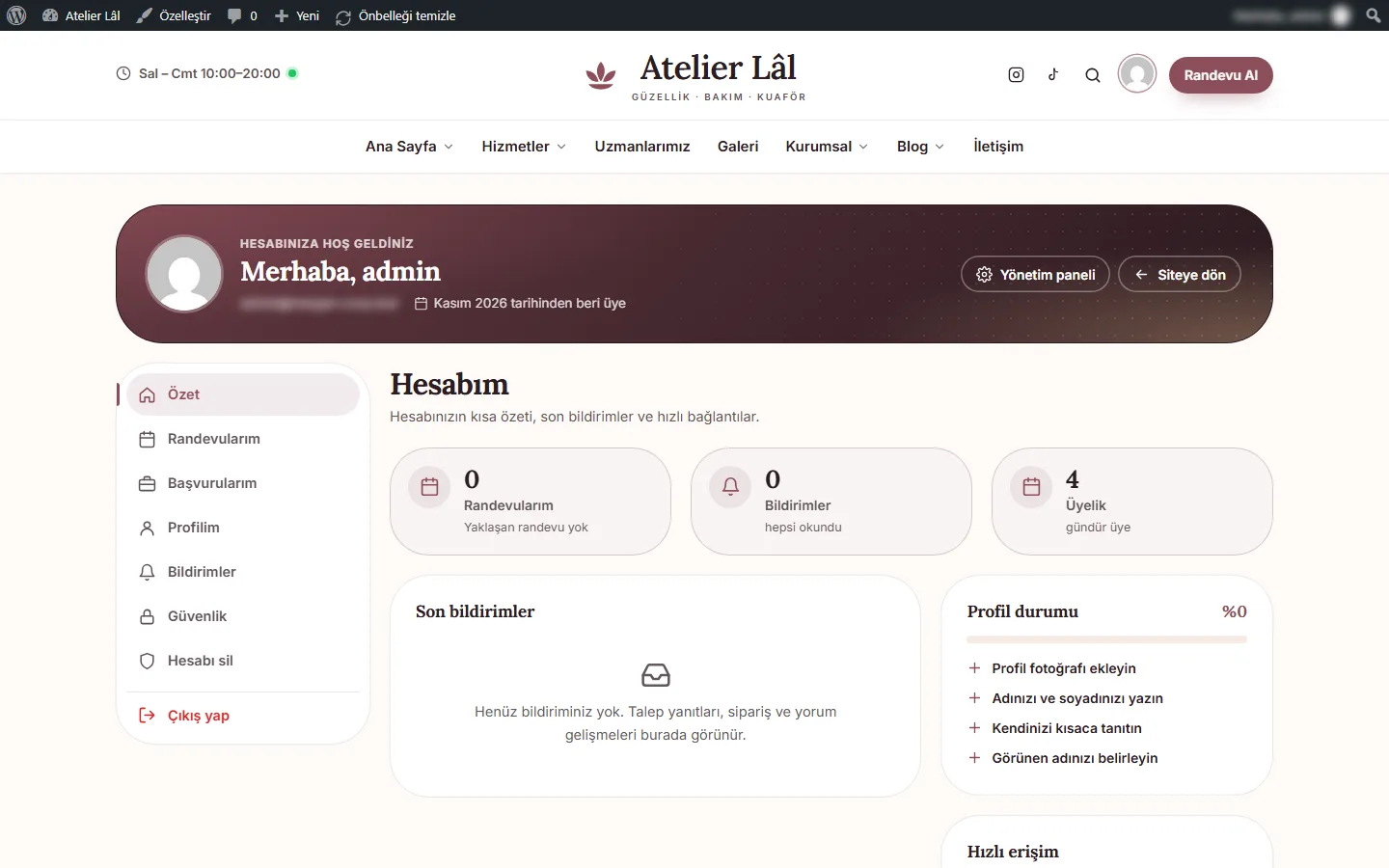
A logged-in member first sees the Summary page: a welcome area at the top (name, member since date, Back to site), the section menu on the left (1), and in the middle the summary cards, Recent notifications (2), Profile status (3; shows missing profile details as a percentage) and Quick access links.
Profile, security and notifications
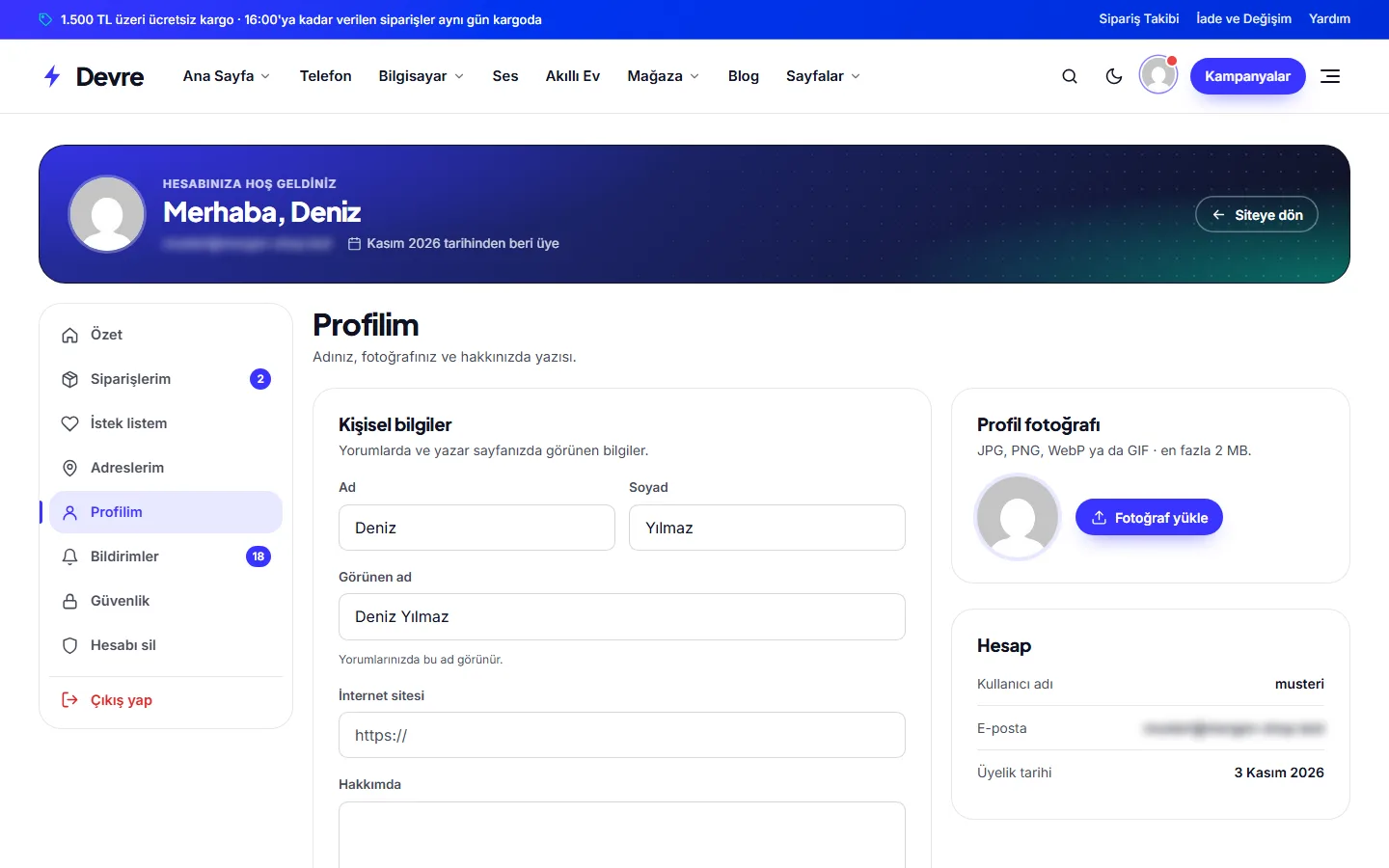
On the My profile page, the member edits their name, display name, photo and short bio:
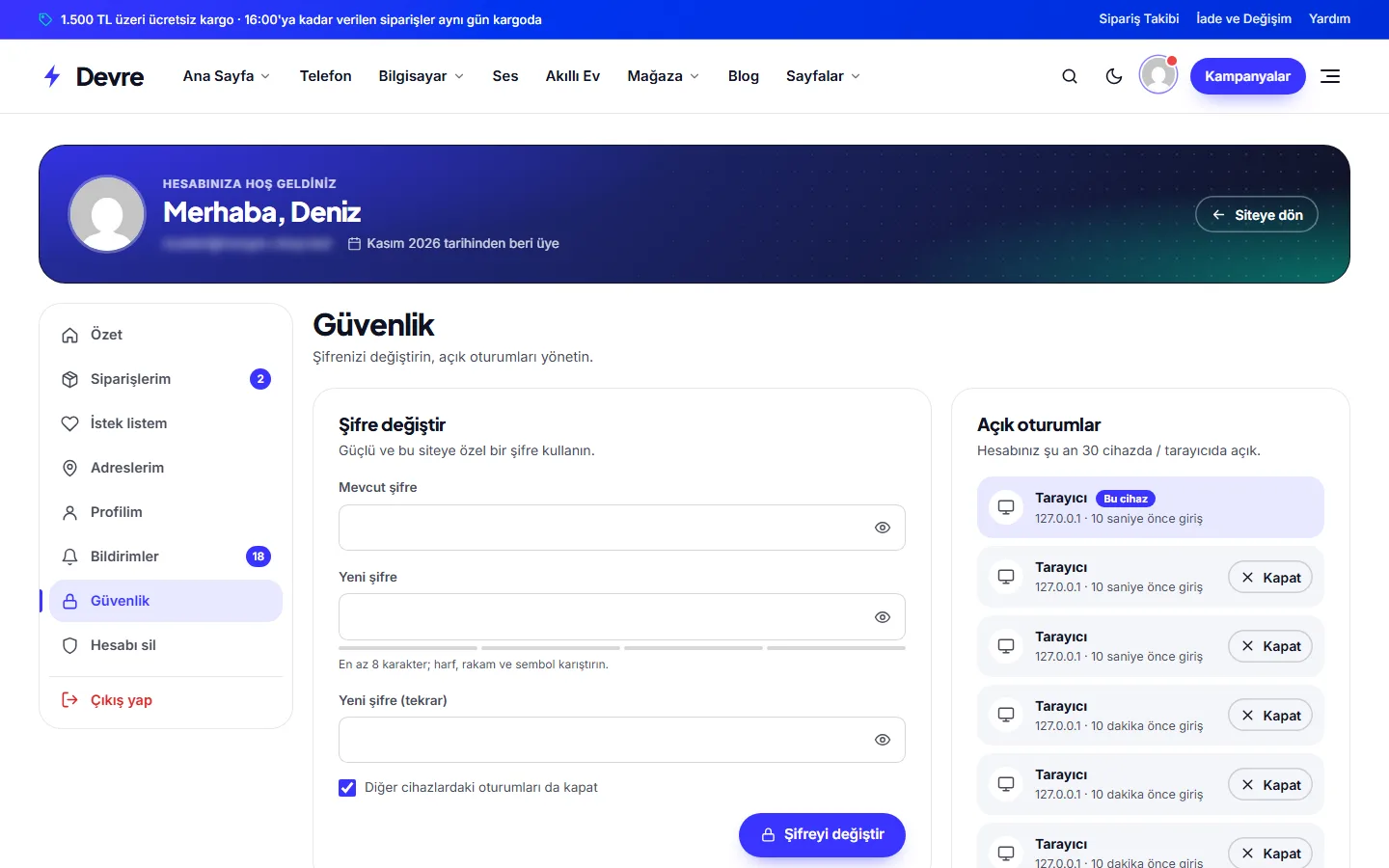
On the Security page, they change their password:
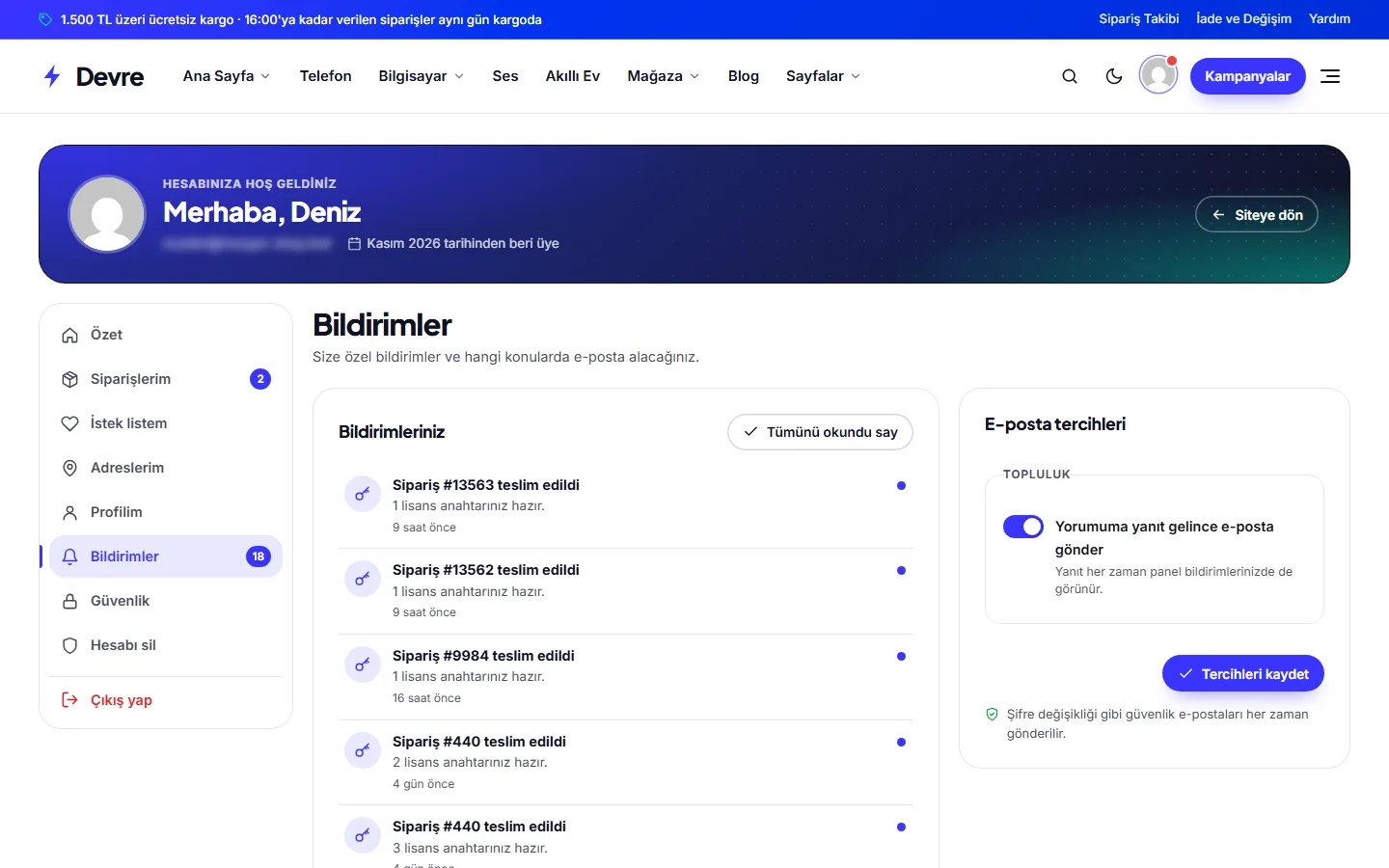
The Notifications page lists on-site notifications such as order delivery, support replies and appointment reminders. The number on the bell icon in the header is the number of unread notifications.
The Delete account page is where KVKK rights are exercised:
On phones
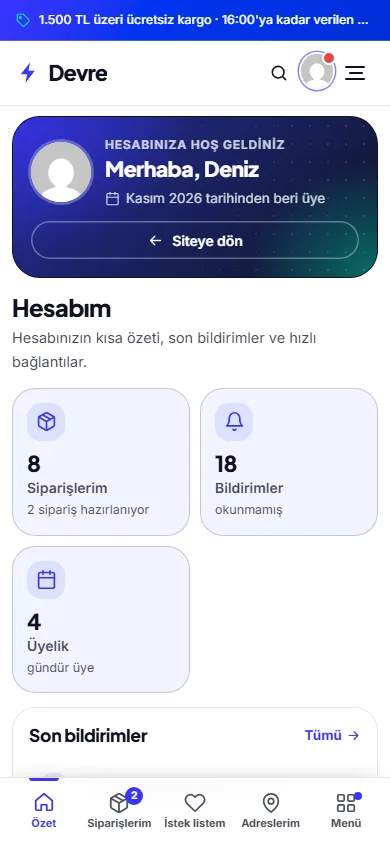
On phones, the section menu turns into an app-like tab bar at the bottom of the screen (Appearance › Mobile navigation: Bottom tab bar).
On different site types
On a news site, the reader account consists of saved posts, comments and notifications:
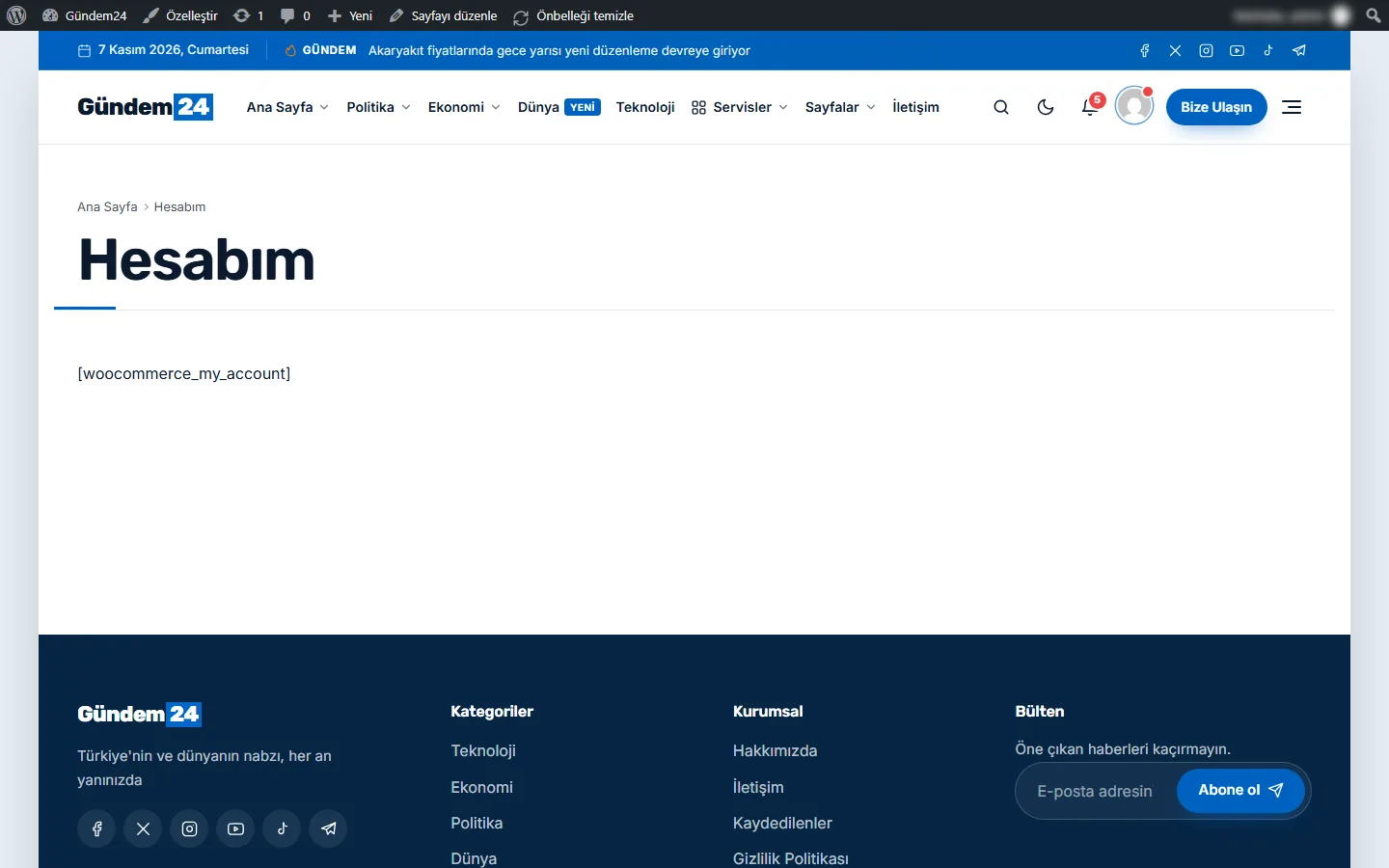
On clinic and corporate sites, appointments come to the fore:
Example setups
News site: reader account
- In the Feature Center, turn on the Member login & registration, Saved Posts and Notification bell features.
- Apply the Customer dashboard › News & magazine profile.
- Choose "Saved", "Comments" and "Notifications" in Summary cards.
- A reader who taps the save (bookmark) icon on a post finds it under Saved, and gets a notification when someone replies to their comments.
Digital product store
- Publish at least one product with a key pool. See Store › Digital product.
- Apply the Customer dashboard › Digital products & games profile; My licenses moves to the top.
- Turn on the Support System; My support tickets and the Return request link in My orders appear.
- Choose "License keys" and "Orders" in Summary cards.
Clinic
- Turn on the Appointment System and enter your business hours. See Corporate › Booking.
- Apply the Customer dashboard › Clinic & health profile. Sales sections come turned off; the patient sees only My appointments, Notifications and account settings.
- Patients don't have to sign up to book an appointment; if they open an account with their email, they see their past appointments in their panel.
Viewing the panel as an administrator
When you open /hesabim/ as an administrator, a Dashboard button also appears in the welcome area. To see the panel through a member's eyes, create a test member account and log in with it in a private window; on the administrator account some sections (e.g. My orders on an account without orders) may look empty.
Front-end admin shortcuts
The Feature Center › Member login & registration › Front-end admin shortcuts setting decides how you reach the admin screens while browsing the site:
| Option | What happens |
|---|---|
| WordPress toolbar (standard) | Default. Logged-in administrators see the WordPress toolbar at the top of the page. |
| Shortcuts in the account menu (toolbar hidden) | The toolbar is not shown on the site; an Admin section appears at the top of the account button's menu in the header, for administrators only: Dashboard and Edit this page (opens the post, page, page builder or category screen). |
Members and visitors never see this section. If the account button is turned off in the header, with this option the button is shown to logged-in administrators only. The live demos use the second option.
Tip: The Live preview on the Customer dashboard screen shows how changes will look to members before you save. Keep section names short (two words at most); long names are shortened in the bottom tab bar on phones.
Notifications
With the Notification bell feature on, members see the following events on the bell icon in the header and in the Notifications section of the panel:
- The order status changed, the order was delivered, the license key is ready.
- A reply arrived on a support ticket, the ticket status changed.
- An appointment was confirmed, cancelled or is coming up.
- Someone replied to their comment.
- Announcements the administrator sent to all members.
Unread notifications are highlighted and shown as a number on the bell icon. Notifications don't replace email, they complement it: even if a member misses an email, they see it in their panel.
Common mistakes
| Symptom | Cause | Solution |
|---|---|---|
| No "Sign up" link | WordPress membership is off | Settings › General › Membership › Anyone can register. |
| The My licenses section doesn't appear | No published product with a key pool, or the profile is "Shop" | Mark the product with Deliver from key pool; set the profile to Digital products & games or Automatic. See Store. |
| My support tickets doesn't appear | The Support System is off | Turn on Feature Center › Support System. See Support system. |
The /hesabim/ page returns a 404 |
Permalinks weren't refreshed | Open Settings › Permalinks and click Save Changes without changing anything. See FAQ. |
| Members don't get password reset emails | Email sending | Set up SMTP. See Email and SMTP. |
| My section names were reset when I chose a profile | The profile rebuilds the section list | Edit the names and order after applying the profile. |
Related sections
- Store and stocked licenses — My orders, My licenses, Return request.
- Corporate, booking and quotes — My appointments and applications.
- Support system — My support tickets.
- Privacy and cookies